



| Key Takeaway Your robots.txt file is a simple text document at yourdomain.com/robots.txt that tells search engine bots which pages they can and cannot crawl. Robots.txt SEO impact is significant — a misconfigured robots.txt can block Google from crawling your entire website, collapsing your rankings overnight. Best practice: block admin pages, duplicate parameter URLs, and private content. Never accidentally block your homepage, service pages, or any content you want to rank. |
Imagine spending months creating excellent content, building backlinks, and optimising your website — only to discover that a single line of code has been silently blocking Google from crawling everything you have created. This happens more often than you might expect, and the culprit is almost always a misconfigured robots.txt file.
Understanding robots.txt SEO is one of the most important technical SEO fundamentals — and one of the most dangerous areas to get wrong. This guide explains exactly what robots.txt is, how every directive works, what to block and what to allow, and how to manage robots.txt across WordPress, Shopify, and Wix. We also cover the increasingly important topic of controlling AI bot access to your content.
What Is a Robots.txt File?
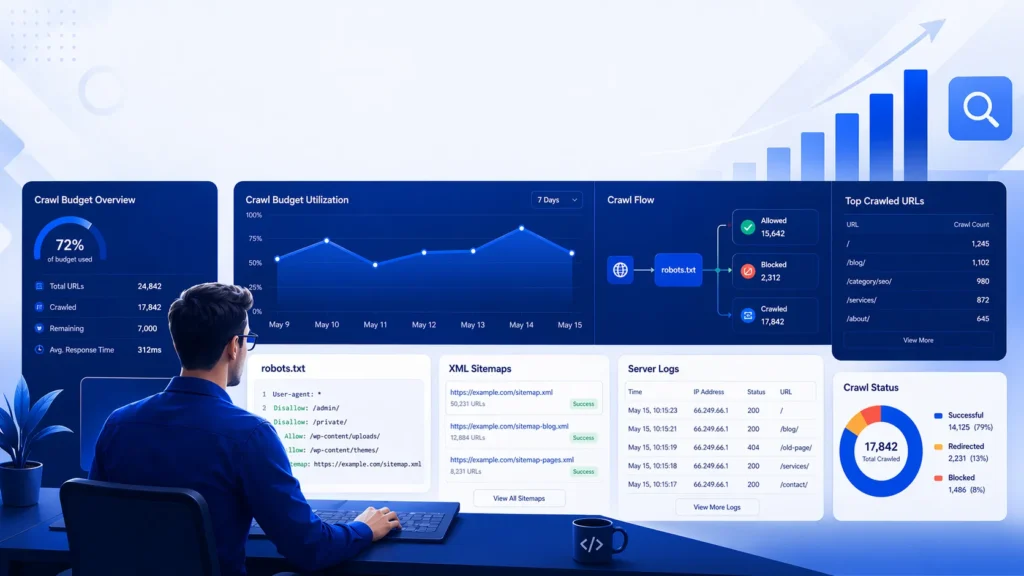
A robots.txt file is a plain text file placed at the root of your website that implements the Robots Exclusion Protocol — a standard that tells web crawlers which parts of your site they should and should not access. As detailed in Google Search Central’s robots.txt documentation, robots.txt is the first thing Googlebot reads when it visits your website — before accessing any page.
Every search engine bot, AI crawler, and content scraper that respects the robots.txt standard reads this file at yourdomain.com/robots.txt before crawling your site. Reputable bots (Googlebot, Bingbot, GPTBot) follow robots.txt rules. Malicious scrapers typically ignore them entirely.
The key distinction in robots txt SEO: robots.txt controls crawling — not indexing. Blocking a page in robots.txt prevents Google from crawling it, but if that page has external backlinks pointing to it, Google may still index it without seeing its content. If you want to completely remove a page from Google’s index, a noindex meta tag is more reliable.
Robots.txt Directives — Complete Reference
A robots.txt file is built from a small set of directives — instructions that tell crawlers what to do. Understanding each directive is essential for correct robots txt SEO configuration:
| Directive | What It Does | Example | SEO Impact |
| User-agent | Specifies which bot the rules apply to | User-agent: * | Controls all or specific bots |
| Disallow | Tells bots which pages NOT to crawl | Disallow: /admin/ | Blocks crawling — saves budget |
| Allow | Overrides a Disallow for specific paths | Allow: /admin/login | Opens exceptions within blocks |
| Sitemap | Tells all bots where sitemap is | Sitemap: /sitemap.xml | Helps Google discover sitemap |
| Crawl-delay | Delays between bot requests | Crawl-delay: 10 | Reduces server load |
User-agent: * vs Specific Bots
User-agent: * applies rules to ALL crawlers simultaneously. User-agent: Googlebot applies rules only to Google’s crawler. You can have multiple User-agent blocks in your robots.txt — each with different rules for different bots. Rules are applied from top to bottom, and the most specific matching rule takes precedence.
| Basic Robots.txt Structure Example User-agent: * Disallow: /wp-admin/ Disallow: /wp-login.php Disallow: /checkout/ Allow: /wp-admin/admin-ajax.php Sitemap: https://yourdomain.com/sitemap_index.xml |
Understanding the Allow Directive
The Allow directive overrides a broader Disallow rule for a more specific path. The most common use case in WordPress is: Disallow: /wp-admin/ but Allow: /wp-admin/admin-ajax.php — because admin-ajax.php handles AJAX requests that may be needed for front-end functionality that Google needs to render properly.
Robots.txt allow all (permitting all crawlers to access all pages) is the default behaviour when no Disallow rules are present — you do not need to write ‘Allow: /’ explicitly. Simply including no Disallow rules has the same effect.
How Robots.txt Affects SEO — The Direct Impacts
Robots txt SEO impact works through three primary mechanisms that every website owner needs to understand:
1. Crawl Budget Management
Google allocates a limited crawl budget to each website — the number of pages it will crawl in a given period. For websites with thousands of pages, strategically using robots.txt to block low-value pages (admin pages, search result pages, login pages, duplicate parameter URLs) preserves crawl budget for important content pages. This means Google discovers and indexes your valuable pages faster.
2. Prevention of Duplicate Content Indexing
Many websites generate URLs that contain the same content — product pages accessible via multiple category paths, pages with UTM parameters, printer-friendly versions, and so on. Blocking these duplicate URL patterns in robots.txt prevents Google from wasting crawl budget on pages that would be treated as duplicate content.
3. Protecting Sensitive Areas
Admin dashboards, member login pages, private content areas, development staging directories, and internal search result pages should always be blocked from crawling. These pages add no ranking value and may expose structural information about your website to automated crawlers.
The Critical Danger: Blocking Important Pages
The most catastrophic robots txt SEO error is accidentally blocking pages that should be indexed. The most common version of this disaster: a development robots.txt (with ‘Disallow: /’) is accidentally deployed to the live website. Google crawls the robots.txt, finds all crawling blocked, stops crawling the entire website, and within weeks the website disappears from search results. This is a silent catastrophe — the website continues to look and function perfectly for human visitors, while being completely invisible to Google.
Checking your robots.txt for dangerous errors is a standard component of every seo audit dubai — it is the first technical check we perform because its impact is so immediate and severe.
Robots.txt Best Practices — What to Block and What to Allow
Following robots.txt best practices ensures you are protecting crawl budget without accidentally limiting Google’s access to content you need indexed.
Always Block These Pages
- Admin and login pages: Disallow: /wp-admin/ (keep Allow: /wp-admin/admin-ajax.php for WordPress).
- Thank-you and confirmation pages: Disallow: /thank-you/ — these pages offer no ranking value and should not be indexed.
- Checkout and cart pages: Disallow: /cart/ and Disallow: /checkout/ — dynamic pages with no SEO value.
- Internal search results: Disallow: /search/ or Disallow: /?s= — search results create infinite near-duplicate pages.
- Member account pages: Disallow: /my-account/ — personal user data should never be crawled.
- Duplicate URL parameters: Disallow: /*?* — blocks all parameter variations (use carefully — can be overly broad).
- Staging and development areas: Disallow: /staging/ — should have separate robots.txt anyway.
Never Block These Pages
- Homepage — never include Disallow: / (this blocks the entire website).
- Service pages, product pages, category pages — these are your core ranking pages
- Blog posts and content pages — these build your organic traffic.
- CSS and JavaScript files — Google needs to render these to understand your page content and layout.
- Image files (unless you intentionally want images excluded from image search).
- Your XML sitemap — it should be referenced in robots.txt, never blocked.
Pro Tip — The Most Dangerous robots.txt Mistake
The most catastrophic robots.txt error I encounter regularly is ‘Disallow: /’ in a live website’s robots.txt — left over from development. But the second most dangerous mistake is blocking CSS and JavaScript files. Modern websites render their visible content using JavaScript. If you block Googlebot from accessing your JS files, Google cannot render your pages and may see blank content where your actual text and images should be. Never block /wp-content/themes/ or /wp-content/plugins/ CSS and JS in WordPress.
WordPress Robots.txt — Complete Guide
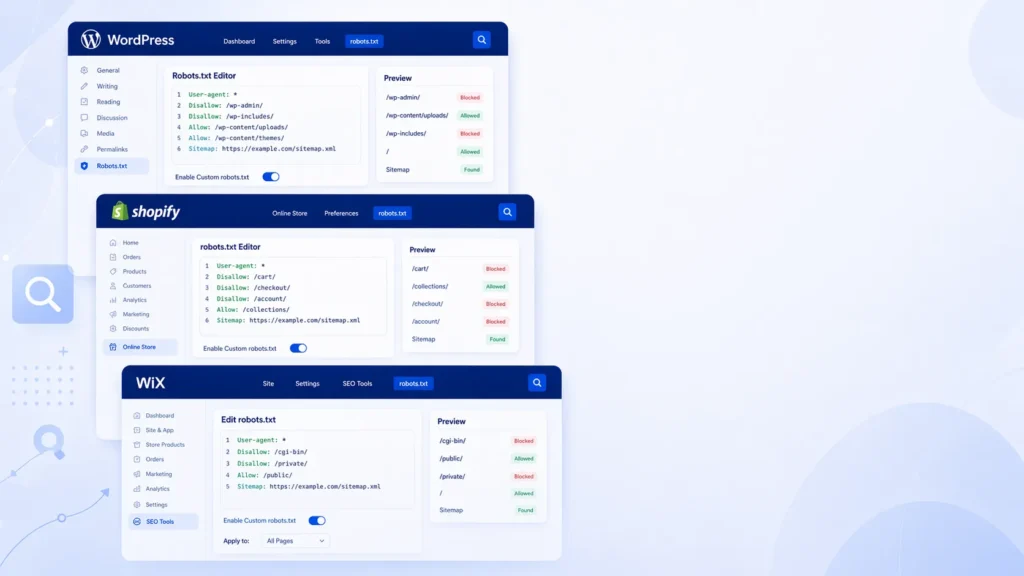
WordPress robots.txt requires specific attention because WordPress’s architecture creates several directories and URL patterns that should be blocked — and one critical file that must remain accessible.
Where Is Robots.txt in WordPress?
WordPress does not create a physical robots.txt file by default. Instead, it generates a virtual robots.txt dynamically at yourdomain.com/robots.txt. To find it, simply visit: https://yourdomain.com/robots.txt in your browser. If an SEO plugin is installed (Yoast, RankMath, All in One SEO), it usually provides an interface to edit the robots.txt content within the WordPress dashboard.
WordPress Robots.txt Example — Recommended Configuration
| Recommended WordPress Robots.txt User-agent: * Disallow: /wp-admin/ Disallow: /wp-login.php Disallow: /xmlrpc.php Disallow: /feed/ Disallow: /trackback/ Disallow: /search/ Disallow: /?s= Disallow: /cart/ Disallow: /checkout/ Disallow: /my-account/ Disallow: /thank-you/ Allow: /wp-admin/admin-ajax.php Sitemap: https://yourdomain.com/sitemap_index.xml |
How to Edit Robots.txt in WordPress
There are three ways to edit robots.txt in WordPress:
- Using Yoast SEO: Go to SEO → Tools → File Editor → robots.txt tab. Edit the content in the text area and save.
- Using RankMath: Go to RankMath → General Settings → Edit robots.txt. Edit and save from the dashboard.
- Directly via FTP/cPanel: If you want a physical robots.txt file (which overrides WordPress’s virtual one), create a robots.txt file in your website’s root directory (/public_html/) and upload it via FTP or File Manager in cPanel.
How to Remove Robots.txt in WordPress
If your robots.txt is causing indexing issues and you want to remove restrictive rules: in Yoast SEO’s File Editor, delete the Disallow rules from the text area but leave the User-agent and Sitemap lines. In RankMath, similarly clear the Disallow entries while keeping the file structure. Never delete the robots.txt file entirely from a live website — an absent robots.txt causes some bots to behave unpredictably.
Diagnosing WordPress robots.txt issues — particularly when they are causing pages to be blocked from indexing — is a core component of our technical seo service dubai — we check every WordPress website’s robots.txt for dangerous blocks and correct misconfigurations as a priority fix.
Shopify Robots.txt — Platform-Specific Guide
Shopify robots.txt works differently from WordPress because Shopify generates it automatically and, until recently, did not allow customisation. Shopify now provides a robots.txt.liquid template that allows store owners to customise their robots.txt.
Where Is Robots.txt in Shopify?
Your Shopify robots.txt is always at yourstorename.myshopify.com/robots.txt (or your custom domain). To view it, visit the URL directly in your browser. To edit it, go to: Online Store → Themes → Actions → Edit Code → Templates → robots.txt.liquid.
How to Remove Robots.txt File From Website Shopify
You cannot delete the Shopify robots.txt file — Shopify requires it. However, you can customise it through the robots.txt.liquid template to remove specific rules that are causing issues. If you are experiencing ‘indexed though blocked by robots.txt’ errors in Google Search Console, it typically means you have custom Disallow rules in your robots.txt.liquid that are blocking pages you want indexed. Remove the conflicting Disallow rules from the template.
Wix Robots.txt — Managing Crawl Control
Robots.txt Wix management is done through the Wix SEO settings. Wix automatically generates a robots.txt for your site, and you can edit it through: Settings → SEO → Robots.txt. The Wix robots.txt editor allows you to add custom Disallow rules while maintaining the platform’s default configuration. Like Shopify, the base robots.txt file cannot be deleted — only customised.
Robots.txt for LLMs and AI Bots — The New Frontier

One of the most significant developments in robots.txt SEO in recent years is the emergence of AI crawler bots from large language model companies. Understanding GPTBot and robots.txt, PerplexityBot user agent, and Anthropic ClaudeBot user agent documentation is increasingly important for website owners who want control over how their content is used for AI training.
Should You Block AI Bots?
This is a genuinely nuanced decision that depends on your content strategy and commercial priorities. Here are the trade-offs:
- Blocking AI training bots (GPTBot, ClaudeBot): Prevents your content from being used to train AI models. Does NOT affect your Google or Bing search rankings. Appropriate for publishers who do not consent to AI training data collection.
- Blocking AI search bots (PerplexityBot): Perplexity is an AI-powered search engine that cites sources and can drive referral traffic to cited websites. Blocking it prevents your content from appearing in Perplexity answers — which may be a lost traffic opportunity.
- Allowing all AI bots: Maximises potential AI-driven referral traffic from AI search tools while allowing AI companies to use your content for training.
AI Bot User Agents for Robots.txt
| Bot / User-Agent | Company | Purpose | Block Recommended? |
| Googlebot | Search indexing | No — essential for SEO | |
| Bingbot | Microsoft | Bing search indexing | No — valuable search traffic |
| GPTBot | OpenAI | ChatGPT AI training | Optional — owner’s choice |
| ClaudeBot | Anthropic | Claude AI training | Optional — owner’s choice |
| PerplexityBot | Perplexity AI | AI search answers | Optional — may drive traffic |
| AhrefsBot | Ahrefs | SEO backlink data | Optional — no SEO impact |
| MJ12bot | Majestic | Link intelligence data | Optional — no SEO impact |
How to Block Specific AI Bots in Robots.txt
| Robots.txt — Blocking AI Training Bots (While Keeping Google) # Block OpenAI training bot User-agent: GPTBot Disallow: / # Block Anthropic ClaudeBot User-agent: claudebot Disallow: / # Block Common Crawl (used by many AI companies) User-agent: CCBot Disallow: / # Allow all search engine bots (keep SEO intact) User-agent: Googlebot Allow: / User-agent: Bingbot Allow: / Sitemap: https://yourdomain.com/sitemap_index.xml |
Anthropic ClaudeBot user agent documentation for robots.txt: Anthropic’s crawler uses the user-agent ‘claudebot’ (lowercase). PerplexityBot user agent for robots.txt is ‘PerplexityBot’. These user-agents are case-sensitive in robots.txt implementation on most servers.
How to Fix ‘Indexed Though Blocked by Robots.txt’
‘Indexed though blocked by robots.txt’ is a Google Search Console warning that appears when a page is in Google’s index despite being blocked by robots.txt. This occurs because external backlinks pointing to a blocked page give Google enough signal about the page’s existence to index a skeleton version — without seeing any content.
Understanding Why This Happens
When Google encounters a URL blocked by robots.txt that has external links, it records the URL’s existence but cannot crawl the page’s content. It may show this URL in search results with a message like ‘A description for this result is not available because of this site’s robots.txt.’ This is almost never the desired behaviour.
How to Fix Indexed Though Blocked by Robots.txt
There are two scenarios and two different fixes:
- Scenario 1 — The page SHOULD be indexed: Remove the Disallow rule from robots.txt. The page should be crawlable if it needs to rank. After removing the block, request re-indexing through Google Search Console’s URL Inspection Tool.
- Scenario 2 — The page should NOT be indexed: Add a noindex tag to the page rather than (or in addition to) using robots.txt. A noindex tag on an accessible page is more reliable for complete removal from Google’s index than a robots.txt block.
Robots.txt and Subdomains
Robots txt disallow subdomain configuration is important to understand: each subdomain has its own robots.txt file at the subdomain root. A robots.txt at yourdomain.com/robots.txt does NOT apply to blog.yourdomain.com or shop.yourdomain.com — each subdomain must have its own robots.txt configuration.
If you want to block a specific subdomain entirely from crawling: create a robots.txt at blog.yourdomain.com/robots.txt containing ‘User-agent: * / Disallow: /’. If you want to allow all crawling on a subdomain, either create a permissive robots.txt or leave the robots.txt absent (though the latter is not recommended for production sites).
Expert Insight: Robots.txt Errors in UAE Business Websites
Expert Insight — Robots.txt Misconfigurations Across UAE Audits
After auditing hundreds of UAE business websites, robots.txt errors appear in three consistent patterns. First: WordPress development robots.txt (Disallow: /) deployed to live websites — this is the most catastrophic and most common error, and it often goes undetected for weeks because the site looks completely normal to human visitors. I discovered this error on a Dubai e-commerce site that had been fully blocked for 6 weeks before the client noticed a traffic collapse. The fix took 5 minutes; the recovery took 8 weeks. Second: blocking CSS and JavaScript files with overly broad Disallow: /wp-content/ rules — this prevents Google from rendering pages correctly, causing Google to see blank or minimal content where rich page content should be. Third: no Sitemap directive in robots.txt — a missed opportunity to ensure all search engines discover your sitemap automatically, regardless of whether they have been manually submitted in Search Console.
Case Study: How a Robots.txt Error Collapsed and Recovered Rankings
A Dubai-based real estate platform underwent a website migration to a new hosting environment. During the migration, the development team left the staging robots.txt — containing ‘Disallow: /’ — in place on the new production server. The website launched publicly with a fully blocking robots.txt.
Over the following 5 weeks, the platform lost 78% of its organic traffic. Rankings for over 400 property listing pages disappeared from Google search results. The client initially attributed the drop to the migration itself — not realising the robots.txt was the specific cause.
A technical audit identified the robots.txt error within the first 10 minutes of the investigation. Here is what we observed and fixed:
- robots.txt contained: User-agent: * / Disallow: / — blocking all crawling of all pages.
- Google Search Console showed: Coverage report with hundreds of pages in ‘Excluded — blocked by robots.txt’ status.
- Fix applied: Updated robots.txt to the correct production configuration, blocking only admin and private pages.
- Sitemap added: Added Sitemap: directive to the corrected robots.txt.
- Sitemap resubmitted: Submitted the sitemap in Search Console to accelerate recrawling.
- Requested re-indexing: Used URL Inspection Tool to request re-indexing of 40 highest-priority property pages.
Recovery timeline: 40% of traffic recovered within 3 weeks as Google rapidly recrawled the newly accessible pages. 85% recovered within 6 weeks. Full recovery to pre-migration traffic levels took 10 weeks — the delay caused by Google’s cautious re-evaluation of the website after the crawl interruption. The estimated revenue impact of the 10-week recovery period: AED 340,000 in lost property enquiry revenue from organic search.
Related Guides
Understanding robots.txt is most powerful when combined with complete technical SEO knowledge:
- What Is Technical SEO — How robots.txt fits within the complete framework of technical search optimisation.
- How to Fix Crawl Errors in Google Search Console — Fix the crawl errors that robots.txt misconfigurations often cause.
- What is SEO and How Does It Work — The complete beginner’s guide to SEO fundamentals.
- How to Fix Indexing Issues in Google Search Console — Learn how to fix indexing issues in Google Search Console step by step. Fix noindex, crawl blocks, soft 404s & more. Expert guide
Frequently Asked Questions — Robots.txt SEO
How to find robots.txt on any website?
To find any website’s robots.txt file, simply add /robots.txt to the end of the domain: https://yourdomain.com/robots.txt. This is the standard location for all websites. If the file exists, it will display in your browser as plain text. If you see a 404 error, the website has no robots.txt file (which means all crawlers have unrestricted access by default).
How to edit robots.txt in WordPress?
Edit robots.txt in WordPress through your SEO plugin: in Yoast SEO, go to SEO → Tools → File Editor → robots.txt tab. In RankMath, go to RankMath → General Settings → Edit robots.txt. Alternatively, create a physical robots.txt file in your /public_html/ root directory via FTP or cPanel File Manager — this overrides the WordPress-generated virtual robots.txt.
Where is robots.txt in WordPress?
WordPress generates a virtual robots.txt at yourdomain.com/robots.txt — this file does not physically exist in your server files unless you have created one manually. If you have installed an SEO plugin like Yoast SEO or RankMath, the plugin generates and controls the robots.txt content. If no physical robots.txt exists in your root directory, WordPress uses its built-in virtual robots.txt generation.
How to remove robots.txt file from Shopify website?
You cannot delete the robots.txt file from a Shopify website — Shopify requires it. However, you can customise it through the robots.txt.liquid template found in Online Store → Themes → Edit Code → Templates. If specific Disallow rules in the Shopify robots.txt are causing indexing issues, locate and remove those specific rules from the template while keeping the file structure intact.
Where is robots.txt in Shopify?
Your Shopify robots.txt is located at yourstorename.com/robots.txt (or your custom domain). To edit it, go to: Online Store → Themes → Actions → Edit Code → Templates → robots.txt.liquid. If the robots.txt.liquid file does not appear in your templates list, you may need to add it — this feature is available in Shopify’s Dawn and other updated themes.
How to fix ‘indexed though blocked by robots.txt’?
If the page should be indexed: remove the Disallow rule blocking it from your robots.txt, then request re-indexing through Google Search Console’s URL Inspection Tool. If the page should NOT be indexed: add a noindex meta tag to the page rather than relying solely on robots.txt blocking — noindex is more reliable for complete index removal than robots.txt. Google can still index a robots.txt-blocked page if it has external backlinks.
Does robots.txt affect Google rankings?
Robots.txt does not directly improve rankings — but incorrect configuration can catastrophically destroy them. Blocking important pages prevents Google from crawling and indexing them. Blocking CSS and JavaScript prevents Google from rendering page content correctly. These errors directly suppress or eliminate rankings for affected pages. Correctly configured robots.txt protects crawl budget and prevents duplicate content from being crawled — providing indirect ranking benefits through better crawl efficiency.
What is the difference between robots.txt and noindex?
Robots.txt Disallow tells Google not to CRAWL a page — but Google may still INDEX a URL it cannot crawl if external links reference it. A noindex meta tag tells Google not to INDEX a page — but Google must be able to crawl the page to read the noindex tag. For complete page removal from Google’s index, use noindex (on a crawlable page). For crawl budget protection, use robots.txt. Never use both simultaneously — a noindex tag on a robots.txt-blocked page cannot be read by Google.
Should I block AI bots like GPTBot and ClaudeBot in robots.txt?
Blocking AI training bots (GPTBot for OpenAI, claudebot for Anthropic) prevents your content from being used to train AI models. This does NOT affect your Google or Bing rankings. The decision is a content rights choice: if you do not want AI companies training on your content, blocking these bots is appropriate. If your content strategy benefits from AI-driven referral traffic (from AI search tools), allow bots like PerplexityBot while blocking pure training bots.
What is the robots.txt disallow all command?
The robots.txt disallow all command is: User-agent: * followed by Disallow: / on the next line. This blocks ALL crawlers from accessing ALL pages on your website. This configuration is appropriate only for development or staging environments — never for live production websites. A live website with ‘Disallow: /’ will lose all Google rankings within weeks as Google stops crawling and starts deindexing pages.
How do I block a specific folder in robots.txt?
To block a specific folder (directory) in robots.txt, use: Disallow: /folder-name/ — for example, Disallow: /wp-admin/ blocks the WordPress admin directory. The trailing slash is important — Disallow: /wp-admin/ blocks the directory and all its contents, while Disallow: /wp-admin blocks only an exact match for that path without contents.
Can robots.txt block subdomains?
No — a robots.txt file at yourdomain.com/robots.txt applies ONLY to the main domain. Each subdomain (blog.yourdomain.com, shop.yourdomain.com) requires its own robots.txt file at blog.yourdomain.com/robots.txt and shop.yourdomain.com/robots.txt respectively. Rules in your main domain’s robots.txt do not extend to or affect any subdomains.
How often does Google re-read my robots.txt?
Google re-reads your robots.txt approximately once per day, though the exact frequency varies. Changes to your robots.txt take effect relatively quickly — typically within 24 to 48 hours. If you make urgent changes (removing a blocking rule that has caused rankings to drop), you can request Google to reconsider your robots.txt by submitting a recrawl request through Google Search Console — this is not a standard feature but can sometimes be achieved through the URL Inspection Tool on key pages.
What happens if I have no robots.txt file?
If your website has no robots.txt file (returning a 404 when accessed at yourdomain.com/robots.txt), all well-behaved bots treat it as if there are no restrictions — they will crawl all publicly accessible pages. This is not inherently dangerous but is not best practice. You lose the ability to manage crawl budget and protect sensitive areas. It is recommended to always have a robots.txt file, even if it only contains the Sitemap directive.
How do I test my robots.txt is working correctly?
Test your robots.txt using Google Search Console’s robots.txt Tester tool (found under Legacy Tools). Enter specific URLs to verify whether your current robots.txt rules allow or block each one. Also test by visiting yourdomain.com/robots.txt directly to view the current file. After making changes, use the URL Inspection Tool in Search Console to verify that key pages are accessible to Googlebot. For a comprehensive robots.txt audit and ongoing crawl management, our seo agency dubai tests every robots.txt configuration as part of every technical SEO engagement.
Conclusion: Robots.txt SEO Requires Precision and Regular Auditing
Robots txt SEO is one of those technical fundamentals where the cost of getting it right is minimal and the cost of getting it wrong is enormous. A correctly configured robots.txt protects your crawl budget, prevents duplicate content issues, and controls who accesses your content. An incorrectly configured one can silently destroy years of ranking work in a matter of weeks.
The most important robots.txt habit any website owner can develop is checking their robots.txt file after every major website change — plugin updates, hosting migrations, theme switches, and platform changes. These are the moments when robots.txt misconfigurations most commonly appear.
Check your robots.txt today. Visit yourdomain.com/robots.txt and review every Disallow rule. Verify it does not contain ‘Disallow: /’ or any rule that blocks your core content pages. Add your sitemap URL using the Sitemap: directive if it is not already there. Test specific URLs using Google Search Console’s robots.txt Tester.For comprehensive robots.txt configuration, audit, and ongoing technical SEO management for your website, our technical seo service dubai handles complete robots.txt optimisation as part of every technical SEO engagement — ensuring Google can access exactly the pages you need it to find.



1 Comment
Charlene
April 22, 2026 at 6:34 pmNice insights here. AI generated content is evolving so fast.
I’ve been experimenting with similar prompts. The output quality depends heavily on prompt structure.
I recently found some useful prompt ideas here: interesting
resource. Appreciate the post.