



| Key Takeaway Crawl errors occur when Google’s bots attempt to access pages on your website but fail — due to 404 errors, server problems, redirect loops, or blocked pages. To fix crawl errors: open Google Search Console → Coverage report, identify the error type, apply the correct fix (redirect, restore, or remove), then request re-indexing. Unresolved crawl errors directly suppress your search rankings by preventing Google from accessing and indexing your content. |
If you have ever opened Google Search Console and seen a red number next to ‘Coverage errors’, you have encountered one of the most common — and most impactful — technical SEO issues a website can have. Crawl errors are silent ranking killers. They prevent Google from accessing your pages, waste your crawl budget, and directly suppress your position in search results.
The good news is that most crawl errors follow predictable patterns and can be fixed systematically once you know exactly what you are dealing with. This guide covers everything you need to fix crawl errors in Google Search Console — from understanding what each error type means to applying the correct fix and verifying it has worked.
What Are Crawl Errors?
Crawl errors are issues that occur when Google’s crawler (Googlebot) attempts to visit a URL on your website but cannot successfully access or process the page. Every time Googlebot encounters a problem accessing one of your pages, it records a crawl error in Google Search Console.
Crawl errors in SEO matter because they directly interrupt Google’s ability to discover, read, and index your content. A page Google cannot successfully crawl is a page that cannot rank — regardless of how well-written its content is or how many backlinks point to it.
For websites with significant numbers of unresolved crawl errors, a comprehensive seo audit dubai is the fastest way to identify every issue, prioritise fixes by impact, and implement corrections systematically.
Types of Crawl Errors — Complete Reference Table
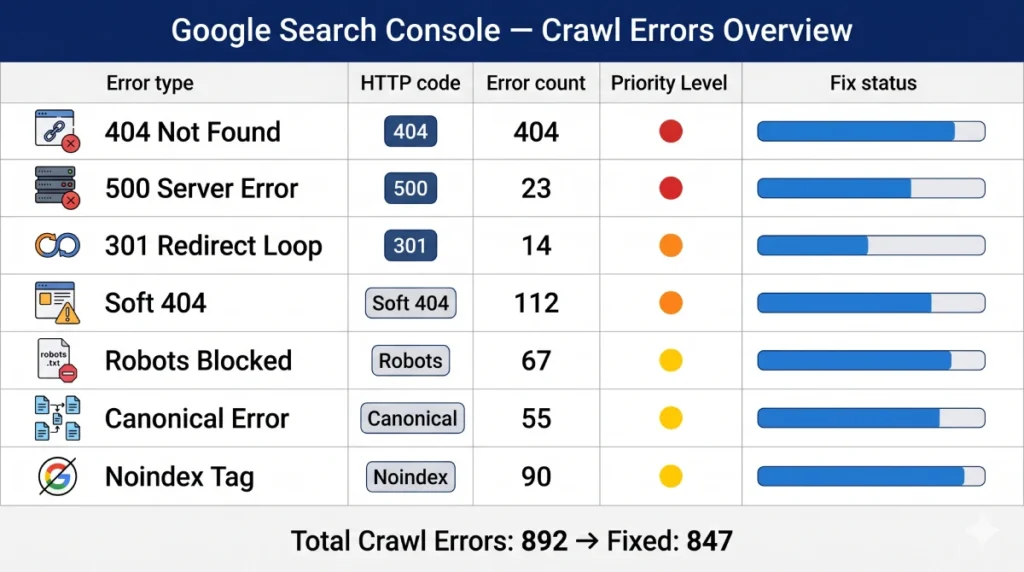
Before you can fix crawl errors, you need to understand what each type means. Here is a complete reference of every crawl error type you will encounter in Google Search Console:
| Error Type | HTTP Code | Common Cause | Fix |
| Not Found | 404 | Deleted page, changed URL, typo in link | 301 redirect or restore page |
| Server Error | 500–599 | Server crash, plugin conflict, timeout | Fix server / hosting issue |
| Redirect Error | 301/302 loop | Circular redirects, excessive chain | Fix redirect chain to direct path |
| Blocked by robots | N/A | robots.txt misconfiguration | Update robots.txt rules |
| Soft 404 | 200 (empty page) | Empty pages returning 200 status | Add content or redirect to relevant page |
| Noindex tag | N/A | CMS accidentally adds noindex tag | Remove tag, request indexing |
| Canonical Error | N/A | Self-referencing or incorrect canonical | Set correct canonical URL |
Each error type requires a different fix. Applying the wrong fix — for example, simply removing a 404 error from Search Console without creating a redirect — does not resolve the underlying problem and the error will return on the next crawl.
How to Find Crawl Errors in Google Search Console
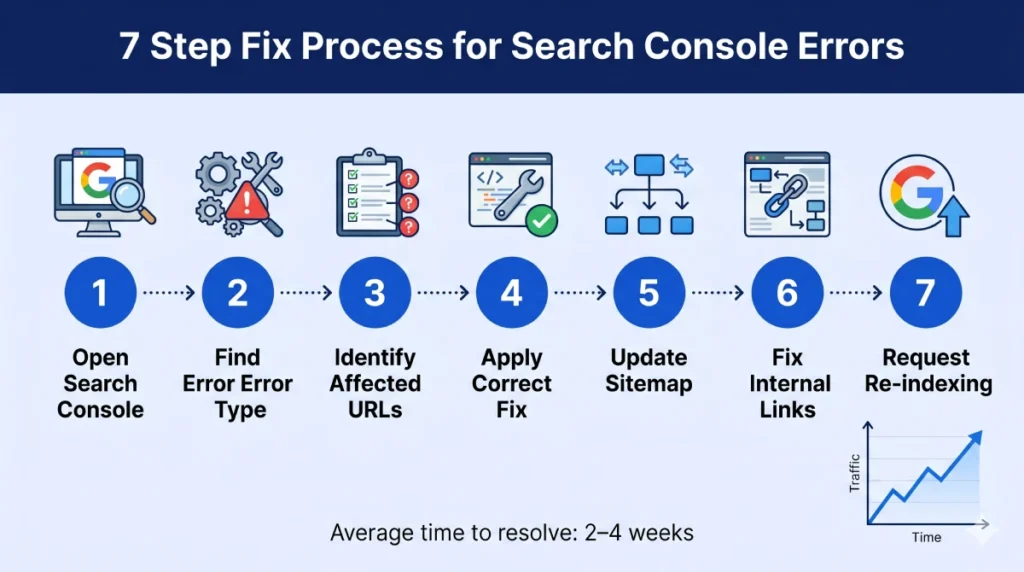
Finding your crawl errors is the essential first step. Here is exactly where to look in Google Search Console:
Using the Coverage Report
- Log in to Google Search Console at search.google.com/search-console
- Select your property (website) from the left dropdown
- In the left sidebar, click ‘Indexing’ → then ‘Pages’
- You will see four tabs: Error, Valid with warnings, Valid, and Excluded
- Click ‘Error’ to see all pages with crawl errors that prevented indexing
- Click each error type to see the specific URLs affected and the reason for the error
- Click any individual URL to see details including the last crawl date and a ‘Test URL’ option
Using the URL Inspection Tool
For individual page diagnosis, the URL Inspection Tool in Search Console is invaluable. Enter any specific URL to see: whether Google has indexed it, the last crawl date, any crawl errors encountered, and whether the page is eligible to appear in Google Search.
This tool is particularly useful after applying a fix — you can test whether the corrected URL is now accessible and request Google to crawl it again immediately rather than waiting for the next scheduled crawl.
Using Third-Party Crawl Tools
Google Search Console only shows errors Google has already encountered. A site crawler tool finds all potential crawl issues proactively — including broken links on pages Google may not have crawled yet.
| Tool | Cost | Best For | Key Feature |
| Google Search Console | Free | All websites — start here | Official Google crawl data |
| Screaming Frog | Free / £249/yr | Full site crawl | Finds all crawl errors site-wide |
| Ahrefs Site Audit | Paid | Ongoing monitoring | Crawl health score + priority fixes |
| Semrush Site Audit | Paid | Agencies and large sites | 200+ technical checks |
| Redirect Detective | Free | Checking redirect chains | Shows full redirect path |
| GTmetrix / PSI | Free | Page speed crawl issues | Core Web Vitals detail |
For a complete technical crawl setup and ongoing monitoring, our google search console service dubai configures Search Console correctly, sets up crawl monitoring, and provides monthly reporting on all crawl health metrics — so you never have undetected crawl errors silently suppressing your rankings.
How to Fix 404 Crawl Errors (Not Found)
The 404 Not Found error is the most common crawl error and occurs when Google tries to access a URL that no longer exists on your website. How to fix crawl errors 404 not found depends on whether the page should still exist and where links to it are coming from.
Step 1: Determine Why the 404 Occurred
Before fixing any 404, understand what caused it:
- Was the page deliberately deleted? Then the 404 may be appropriate — unless backlinks or internal links point to it.
- Was the URL changed without a redirect? This is the most common cause — a page exists but under a new URL.
- Is it an external link pointing to a URL that never existed? This can happen from misspelled links on other websites.
- Is it an old URL from a site migration that was not redirected? Extremely common after website relaunches.
Step 2: Apply the Correct Fix
There are three correct responses to a 404 error — choose based on your specific situation:
Option A: Create a 301 Redirect (Most Common Fix)
If the page existed and has been moved or renamed — or if valuable backlinks or internal links point to the 404 URL — create a 301 permanent redirect from the old URL to the most relevant current page. A 301 redirect passes the link equity from the old URL to the new one, preserving your SEO value.
- WordPress: Use a plugin like Redirection or Yoast SEO Premium to add 301 redirects without touching code.
- Apache servers: Add redirect rules in the .htaccess file.
- Nginx servers: Add rewrite rules in the nginx configuration file.
- Shopify: Use the built-in URL redirects in Online Store → Navigation → URL Redirects.
Option B: Restore the Page
If the page was accidentally deleted and should still exist — restore it with its original content. Then request re-indexing through the URL Inspection Tool in Search Console.
Option C: Let It Return a True 404
If the page legitimately no longer exists, has no backlinks, and has no internal links pointing to it — the 404 is correct. Remove the URL from your sitemap, ensure no internal links point to it, and do not add a redirect. A proper 404 page with helpful navigation is better than a redirect to an irrelevant page.
Step 3: Fix Internal Links Pointing to 404 Pages
Even after adding a redirect, any internal links on your website pointing to the old 404 URL should be updated to link directly to the new URL. This eliminates redirect hops and preserves full link equity. Use Screaming Frog to find all internal pages that contain links to the broken URL, then update each one.
Step 4: Update Your XML Sitemap
Remove any 404 URLs from your XML sitemap and ensure the sitemap only contains live, indexable pages. A sitemap containing 404 URLs wastes Google’s crawl budget on pages that return errors.
Pro Tip — Prioritise 404s with Backlinks
Not all 404 errors deserve equal attention. Export your 404 error list from Search Console, then cross-reference it against your backlink profile in Ahrefs or Semrush. Any 404 URL that has external backlinks pointing to it should be your highest priority fix — these are the 404s where creating a 301 redirect immediately recovers lost link equity and potentially significant ranking power.
How to Fix Server Errors (500–599)
Server errors occur when Google’s crawler successfully reaches your website but the server fails to respond correctly. Unlike 404 errors which are content issues, server errors are infrastructure issues that typically require hosting or developer involvement.
Common Server Error Causes and Fixes
- 500 Internal Server Error: Usually caused by a broken plugin, theme conflict, or PHP error on WordPress. Deactivate recently installed plugins to isolate the cause. Check your error logs.
- 503 Service Unavailable: Server is temporarily overloaded or down for maintenance. If this appears for pages other than during a scheduled maintenance window, contact your hosting provider.
- 504 Gateway Timeout: Your server took too long to respond. Common on shared hosting plans. Upgrade hosting, optimise database queries, or implement caching.
- SSL errors: Expired or misconfigured SSL certificate. Renew the certificate through your hosting provider and ensure all pages load via HTTPS.
Server errors are particularly urgent because they affect your entire website’s crawlability — not just individual pages. If Google encounters repeated server errors, it reduces its crawl rate of your website, which means new content takes longer to be indexed.
How to Fix Redirect Errors
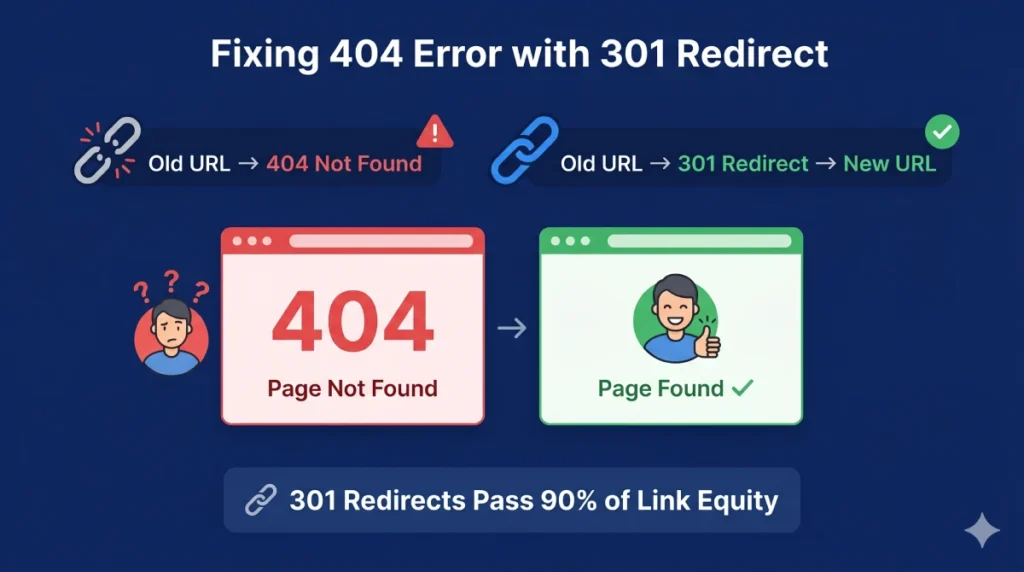
Redirect errors occur when Google follows a redirect chain and encounters a problem — most commonly a redirect loop (where page A redirects to page B which redirects back to page A) or an excessively long redirect chain.
Fixing Redirect Loops
A redirect loop is typically caused by conflicting rules in .htaccess, incorrect plugin settings (common on WordPress), or misconfigured CDN or server settings. Use a tool like Redirect Detective or Screaming Frog to trace the exact redirect path and identify where the loop occurs, then remove the conflicting rule.
Fixing Redirect Chains
A redirect chain occurs when a URL redirects through multiple intermediate URLs before reaching the final destination — for example: URL A → URL B → URL C → URL D. Each hop in a redirect chain adds latency and dilutes the link equity passed. The fix is to update the redirect so URL A points directly to URL D, eliminating all intermediate steps.
WordPress Redirect Issues
Crawl error on WordPress tags is one of the most common redirect issues on WordPress sites. WordPress automatically creates category and tag archive pages that can create thin content and indexation confusion. Common WordPress redirect fixes include: ensuring your www and non-www versions redirect consistently, correcting any redirect rules added by security plugins, and fixing conflicts between multiple redirect plugins.
How to Fix Robots.txt Crawl Blocks
Robots.txt blocks occur when your robots.txt file instructs Google not to crawl certain pages — either intentionally or accidentally. Accidental robots.txt blocks are one of the most catastrophic technical SEO errors because they can prevent Google from crawling your entire website or all pages of a specific type.
How to Check Your Robots.txt
Your robots.txt file is always accessible at yourdomain.com/robots.txt. Review it carefully and check that it is not blocking any important pages or directories. A dangerous common mistake: a robots.txt rule like ‘Disallow: /’ blocks all crawling of your entire website — this is occasionally set during development and accidentally left live after launch.
How to Fix a Robots.txt Block
- Go to yourdomain.com/robots.txt and review all Disallow rules.
- Identify any rules that block important pages or directories.
- Edit the robots.txt file to remove or correct the problematic rules.
- Use Google Search Console’s robots.txt Tester tool to validate your changes.
- Request re-crawling of affected pages through the URL Inspection Tool.
How to Fix Crawl Errors on WordPress
WordPress has several specific crawl error patterns that recur across many websites. Here is how to address the most common WordPress-specific crawl issues:
Category and Tag Duplicate Content
WordPress automatically creates archive pages for every category, tag, author, and date — many of which are thin or duplicate versions of your main content. To fix: use RankMath or Yoast SEO to noindex tag and date archive pages while keeping category pages indexed if they add value.
Paginated Pages
Paginated pages (/page/2, /page/3 etc.) can create confusion about which page to rank. Ensure proper canonical tags are set on paginated pages pointing to the first page of the series, or implement rel=’prev’ and rel=’next’ attributes for pagination handling.
Plugin-Generated URLs
Many WordPress plugins create their own URL structures — form confirmation pages, WooCommerce checkout pages, event booking pages — that should not be indexed but often are. Audit your Search Console coverage for unexpected plugin-generated URLs and apply noindex tags or robots.txt blocks as appropriate.
WordPress Migration Crawl Errors
The most common source of mass crawl errors on WordPress is a site migration that did not implement comprehensive 301 redirects from old URLs to new ones. After any URL structure change, use a plugin like Redirection to map every old URL to its new equivalent.
How to Fix Crawl Errors on JavaScript-Heavy and SaaS Websites
Fixing crawl budget errors in JavaScript-heavy sites is significantly more complex than fixing standard HTML crawl errors. Google can render JavaScript but does so in a second wave of crawling — meaning JS-rendered content may be indexed days or weeks after the initial crawl.
Common JS Crawl Issues
- Content rendered only in JavaScript: If your main content is rendered by JavaScript rather than served in the initial HTML, Google may not see it on the first crawl pass.
- Client-side routing: Single Page Applications (SPAs) using client-side routing may return the same HTML shell for every URL, making it impossible for Google to distinguish between pages.
- Dynamic parameters: SaaS platforms that use dynamic URL parameters may create thousands of unique-looking URLs that are actually the same content — causing massive crawl budget waste.
Fixes for JavaScript Crawl Errors
- Implement server-side rendering (SSR) or static site generation (SSG) for important pages
- Use dynamic rendering — serving pre-rendered HTML to Googlebot while serving JS to users
- Ensure all critical content is present in the initial HTML response, not dependent on JS execution
- Use the URL parameter handling settings in Google Search Console to consolidate duplicate parameter URLs
- Implement proper canonical tags across all parameter variations
JavaScript crawl issues are among the most technically complex SEO problems to diagnose and fix. Our technical seo service dubai has specific expertise in JS rendering crawl issues — diagnosing exactly what Googlebot sees versus what your users see, and implementing the right rendering solution for your specific technology stack.
How to Request Re-Indexing After Fixing Crawl Errors
After applying any crawl error fix, you should not simply wait for Google to recrawl the affected pages. Actively request re-indexing to speed up the process:
- Go to Google Search Console.
- Click the URL Inspection Tool in the left sidebar.
- Enter the URL of the page you have fixed.
- Click ‘Test Live URL’ to confirm the fix is live.
- If the test shows the page is now accessible, click ‘Request Indexing’.
- Google will typically recrawl the page within 24 to 72 hours.
- Return to the Coverage report after 1 to 2 weeks and verify the error has been resolved.
For bulk errors affecting hundreds of pages, submit an updated XML sitemap after making corrections. This signals to Google that a large number of pages have been updated and encourages a faster recrawl of your entire website.
Expert Insight: Crawl Error Patterns Across UAE Websites
Expert Insight — Common Crawl Error Patterns in UAE Business Websites
After auditing hundreds of UAE business websites through our technical SEO practice, three crawl error patterns appear with striking regularity. First: mass 404 errors following a website redesign where the new site went live without 301 redirects from old URLs — I have seen businesses lose 60 to 80% of their organic traffic overnight from this single mistake. The fix is always the same: a comprehensive redirect map implemented before any site migration goes live. Second: WordPress sites where the entire website was accidentally blocked from crawling by a robots.txt ‘Disallow: /’ rule left over from the development phase — this one line of code can render a website completely invisible to Google. Third: e-commerce sites where out-of-stock product pages are returning soft 404s rather than proper redirects or maintained pages — every out-of-stock page that returns a soft 404 is a lost ranking opportunity. Systematic crawl error auditing and resolution consistently produces faster ranking recovery than any other technical SEO activity.
Real Case Study: How Fixing Crawl Errors Recovered 68% of Lost Traffic for a Dubai B2B Website
A Dubai-based B2B software company contacted us after experiencing a sudden 58% drop in organic traffic following a website migration from an old CMS to a new platform. Their new website had been live for six weeks and traffic was continuing to decline. A comprehensive crawl audit through Search Console and Screaming Frog revealed:
- 847 URLs from the old website returning 404 errors — none had been redirected to their new equivalents.
- The old URL structure used /services/category/page-name/ while the new structure used /solutions/page-name/ — creating 847 broken URLs across all their highest-value service pages.
- Their XML sitemap had not been updated and still contained the old URL structure.
- 23 pages with valuable backlinks pointing to old URLs were returning 404 errors — representing years of accumulated link equity.
- The old homepage URL was not redirecting to the new homepage, causing the highest-traffic page to return a 404.
Here is the remediation we implemented over two weeks:
- Created a comprehensive redirect map of all 847 old URLs to their correct new equivalents
- Implemented 301 redirects for all 847 URLs using the server’s .htaccess configuration
- Prioritised the 23 backlinked URLs and verified their redirects were working correctly within the first 48 hours
- Updated the XML sitemap to contain only the new URL structure and resubmitted to Search Console
- Fixed all internal links throughout the website to use new URLs directly rather than relying on redirects
- Requested re-indexing for all corrected URLs through the URL Inspection Tool
Results
Within 6 weeks of implementing the redirect map, 68% of the lost traffic had recovered. Within 12 weeks, the website had recovered 91% of pre-migration traffic levels. The 23 pages with backlinks recovered their previous ranking positions fastest — demonstrating the immediate value of prioritising backlinked 404s. Total recovered organic revenue: AED 280,000 annually.
Related Guides
Understanding crawl errors is most powerful when combined with a complete technical SEO strategy:
What is Technical SEO — How crawl health supports local search visibility for businesses targeting geographic audiences.
Frequently Asked Questions — How to Fix Crawl Errors
What are crawl errors?
Crawl errors are issues that prevent Google’s crawler from successfully accessing and processing pages on your website. They appear in Google Search Console’s Coverage report and include error types such as 404 Not Found, Server Errors (5xx), Redirect Errors, and pages blocked by robots.txt. Unresolved crawl errors prevent affected pages from being indexed and ranked in Google search results.
How can I fix crawl errors reported in Google Search Console?
Open Search Console → Indexing → Pages → Error tab. Click each error type to see affected URLs and the specific reason. For 404 errors: create a 301 redirect or restore the page. For server errors: fix the hosting or server issue. For redirect errors: fix redirect loops or chains. For robots.txt blocks: update your robots.txt rules. After fixing, use the URL Inspection Tool to request re-indexing of corrected pages.
How to remove crawl errors from Google Webmaster tools?
Crawl errors in Google Search Console (formerly Webmaster Tools) are removed by fixing the underlying issue — not by simply dismissing them from the interface. After applying the correct fix, use the URL Inspection Tool to request re-indexing of each corrected URL. The error will disappear from your Coverage report once Google has successfully recrawled the corrected page, typically within 1 to 4 weeks.
How to fix 404 errors reported by Google Search Console?
For each 404 URL: (1) Determine if the page should still exist — if yes, restore it. (2) If the URL has changed, create a 301 redirect from the old URL to the correct new URL. (3) If the page is genuinely gone with no links pointing to it, let it return a proper 404. (4) Update your XML sitemap to remove any 404 URLs. (5) Fix any internal links pointing to the 404 URLs. (6) Request re-indexing through the URL Inspection Tool.
How to fix crawl errors on a SaaS website?
SaaS websites commonly experience crawl errors from: dynamic URL parameters creating thousands of near-duplicate pages, JavaScript-rendered content invisible to Googlebot, gated content returning errors, and frequent URL structure changes. Fixes include: configuring URL parameter handling in Search Console, implementing server-side rendering for important pages, ensuring proper canonical tags across all parameter variations, and using robots.txt to prevent crawling of authenticated content areas.
Can I hire someone to fix Google Search crawl errors?
Yes — technical SEO specialists handle crawl error diagnosis and resolution as a core service. Our technical seo service dubai conducts a full crawl audit, identifies every error type and its cause, implements all fixes, verifies corrections through Search Console, and provides ongoing crawl health monitoring.
What tools can help me identify and resolve crawl errors?
The most important tools are: Google Search Console (free, shows official Google crawl data), Screaming Frog (finds all crawl errors site-wide through a full site crawl), Ahrefs Site Audit (ongoing crawl health monitoring with priority fixes), Redirect Detective (traces redirect chains to find loops), and Google PageSpeed Insights (identifies crawl-related speed issues). Start with Search Console as it shows what Google has actually flagged.
How long does it take for crawl errors to be resolved after fixing?
After applying a fix and requesting re-indexing through the URL Inspection Tool, most individual pages are recrawled within 24 to 72 hours. The error will clear from your Coverage report once Google has successfully crawled the corrected page. For bulk fixes affecting many pages, submit an updated XML sitemap to accelerate the recrawl. You may see some errors persist for 1 to 4 weeks even after fixing, as Google processes the corrections through its update cycle.
What is a soft 404 error and how do I fix it?
A soft 404 occurs when a page returns a 200 (success) HTTP status code but contains no meaningful content — making Google treat it as effectively deleted even though technically the page loads. Common causes include empty search result pages, out-of-stock product pages with no content, and thin landing pages. Fix by: adding meaningful content to the page, redirecting it to a relevant page, or returning a proper 404 status code if the page should not exist.
How do I fix crawl errors caused by redirect loops?
A redirect loop causes infinite redirection between two or more URLs. To fix: use a tool like Redirect Detective to trace the full redirect path and identify where the loop occurs. Then remove the conflicting redirect rule — check your .htaccess file, WordPress redirect plugins, server configuration, and CDN settings for conflicting rules. Test the corrected URL through Redirect Detective to confirm the loop is resolved before requesting re-indexing.
Are there professional agencies that handle crawl error resolution?
Yes — technical SEO agencies specialise in comprehensive crawl error auditing and resolution. Our seo agency dubai provides complete crawl error diagnosis, prioritised fix implementation, and ongoing Search Console monitoring. Professional crawl error resolution is particularly valuable after site migrations, redesigns, or platform changes where mass crawl errors commonly occur.
How do I fix crawl errors after a website migration?
Post-migration crawl errors are almost always caused by old URLs that were not redirected to their new equivalents. The fix requires a comprehensive redirect map: a spreadsheet matching every old URL to its correct new equivalent. Implement 301 redirects for all mapped URLs, update your XML sitemap to contain only new URLs, fix all internal links to use new URLs directly, and request re-indexing through Search Console. Create this redirect map before the migration goes live to prevent the traffic loss that occurs when it is done reactively.
What is crawl budget and how do crawl errors affect it?
Crawl budget is the number of pages Google will crawl on your website within a given time period. It is determined by your website’s authority and server speed. Crawl errors waste crawl budget — when Google repeatedly encounters 404 errors, redirect chains, and server errors, it uses crawl budget on pages that cannot be indexed, leaving valuable pages crawled less frequently. Fixing crawl errors optimises your crawl budget, ensuring Google spends its crawl allocation on your most important indexable pages.
How do I know if my crawl errors are affecting my Google rankings?
Signs that crawl errors are affecting rankings include: pages that used to rank have disappeared from search results, organic traffic has dropped without any obvious content or backlink changes, Google Search Console Coverage report shows a significant number of errors, the number of indexed pages in Search Console is significantly lower than the number of pages on your website, and new content you publish takes unusually long to appear in Google search results.
How much does professional crawl error fixing cost?
Professional crawl error auditing and resolution costs depend on the number of errors, website complexity, and the underlying cause. For a standard business website, a comprehensive crawl error audit and fix implementation typically costs AED 1,500 to AED 4,000. For enterprise or e-commerce websites with thousands of crawl errors from a major migration, costs can range from AED 5,000 to AED 15,000. A professional google search console service dubai includes ongoing crawl monitoring as part of the service, preventing new errors from accumulating undetected.
Conclusion: Fix Crawl Errors Before They Cost You Rankings
Learning how to fix crawl errors is one of the highest-impact technical SEO skills any website owner or marketer can develop. Crawl errors are not just technical inconveniences — they are direct barriers between your content and the rankings it deserves. Every 404 that has not been redirected, every redirect loop that has not been fixed, every robots.txt block that has not been corrected is a page Google cannot rank for you.
The most important thing to understand about crawl errors is that they accumulate silently. Most website owners do not discover their crawl error problems until they notice a significant traffic drop — by which point the errors may have been suppressing rankings for months. Setting up regular crawl monitoring through Google Search Console and a site crawl tool is the only way to catch and fix crawl errors before they cause measurable damage.
Start today: open Google Search Console, go to Indexing → Pages → Error, and see exactly what crawl errors your website currently has. For each error, apply the correct fix from this guide. Then request re-indexing and monitor your Coverage report over the following weeks to confirm the errors have been resolved. Need expert help identifying and fixing every crawl error on your website? Our team at seo audit dubai conducts a comprehensive technical crawl audit and implements every fix — so your website is fully accessible to Google and your content can finally rank the way it deserves.


1 Comment
Refugio
April 19, 2026 at 10:40 pmExcellent, what a webpage it is! This website presents helpful facts to us, keep it up.