


| Key Takeaway Indexing issues in Google Search Console occur when Google cannot or chooses not to add your pages to its search index — meaning those pages cannot appear in search results. To fix indexing issues: open Search Console → Indexing → Pages → identify the specific error type → apply the correct fix (remove noindex tags, fix robots.txt, improve content quality, correct canonical tags, or create 301 redirects) → request re-indexing. Each error type requires a different solution. |
You published a new service page, optimised it carefully, and waited for it to appear in Google search results. Weeks pass. The page never appears. You open Google Search Console and see the notification: ‘New page indexing issues detected.’ This is one of the most frustrating experiences in SEO — and one of the most common.
This guide covers every aspect of how to fix indexing issues in Google Search Console — from understanding what each error type means, to applying the correct fix for each specific problem, to verifying that your fixes have worked. By the end, you will have the knowledge to systematically resolve every page indexing issue your website currently has.
What Are Page Indexing Issues?
Page indexing issues are problems that prevent Google from adding your web pages to its search index. Google’s index is the database of web pages it uses to serve search results — a page that is not in the index cannot rank for any search query, regardless of how well-optimised its content is.
According to Google’s indexing documentation, Google crawls billions of pages but selectively indexes content based on quality, relevance, and technical accessibility. Page indexing issues occur when technical barriers, content quality problems, or configuration errors prevent Google from successfully adding a page to its index.
Page indexing issues detected notifications in Search Console are Google’s direct communication that something is wrong with specific pages on your website. Unlike ranking problems — which can have dozens of subtle contributing factors — indexing issues have specific, identifiable causes that can almost always be fixed systematically.
Understanding the Google Search Console Pages Coverage Report
Before you can fix indexing issues in Google Search Console, you need to understand how to read the Pages Coverage report — where all indexing issues are displayed.
How to Access the Pages Report
- Log in to Google Search Console at search.google.com/search-console
- Select your property from the dropdown
- In the left sidebar, click ‘Indexing’
- Click ‘Pages’ to open the full coverage report
The Pages report shows four tabs: Error (pages not indexed due to problems), Valid with warnings (indexed but with issues), Valid (successfully indexed), and Excluded (not indexed — may be intentional). Your fix priority is: Error first, then Valid with warnings, then review Excluded to confirm intentional pages are correctly excluded.
Understanding Each Coverage Status
| GSC Status | What Google Is Telling You | Correct Action |
| Valid | Page is indexed — all good | Monitor only |
| Valid with warning | Indexed but has an issue | Investigate and fix the warning |
| Error | Page is NOT indexed — problem exists | Fix the specific error then re-request |
| Excluded | Not indexed — may be intentional | Verify intentional vs unintentional |
Setting up proper Pages Coverage monitoring is the foundation of ongoing technical SEO health. Our google search console service dubai configures complete Search Console monitoring — providing monthly reports on indexing status, new issues detected, and progress on resolved problems.
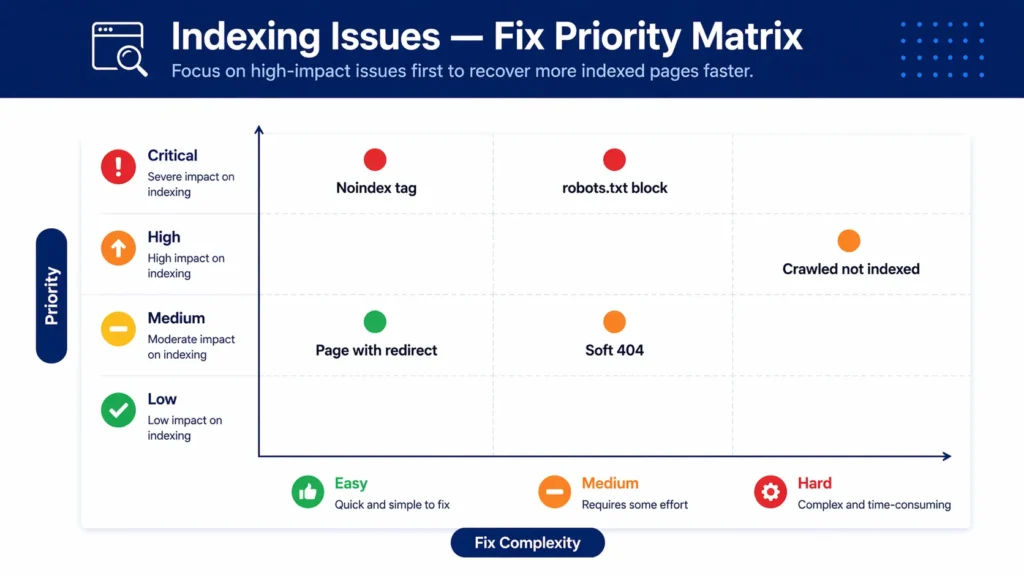
Complete Reference: All Page Indexing Issues and Their Fixes
Here is a complete reference of every page indexing issue you may encounter in Google Search Console, its cause, priority level, and estimated fix time:
| Indexing Issue | Common Cause | Priority | Fix Time |
| Crawled — currently not indexed | Low quality or thin content | 🔴 High | 4–8 weeks |
| Discovered — currently not indexed | Crawl budget issue | 🔴 High | 2–4 weeks |
| Page with redirect | Redirect in sitemap or internal links | 🟠 Medium | Immediate |
| Duplicate without canonical | Missing or wrong canonical tag | 🔴 High | 1–2 weeks |
| Alternate page with canonical | Correct — page deferred to canonical | 🟢 OK | No action needed |
| Excluded by noindex tag | Accidental noindex applied | 🔴 Critical | Immediate |
| Blocked by robots.txt | robots.txt misconfigured | 🔴 Critical | Immediate |
| Not found (404) | Deleted page without redirect | 🟠 Medium | 1–2 weeks |
| Soft 404 | Empty/thin pages returning 200 | 🟠 Medium | 2–4 weeks |
Work through Critical and High priority issues first — these represent pages that Google is actively blocked from indexing. Medium priority issues are important but typically involve content quality decisions rather than urgent technical fixes.
How to Fix: Crawled — Currently Not Indexed
‘Crawled — currently not indexed’ is one of the most common and most misunderstood page indexing issues. Google has successfully crawled these pages but has decided not to add them to its index. This is not a technical blockage — it is a quality judgment. Google found these pages but decided they were not worth indexing.
What Causes This Issue?
- Thin content — pages with very little substantive text (under 300 words with no unique value).
- Duplicate or near-duplicate content — pages too similar to other pages on your website or across the web.
- Low-quality pages — content that adds no value to what is already in Google’s index.
- Poor internal linking — pages that are difficult to discover and have few or no internal links pointing to them.
- New pages on low-authority websites — new websites sometimes experience indexing delays.
How to Fix Crawled — Currently Not Indexed
- Use the URL Inspection Tool to check the specific page’s issue details.
- Assess the content quality honestly — does this page offer genuinely unique, valuable information that Google does not already have indexed from another source?
- If the page has thin content: expand it significantly with original, expert content of at least 600 to 1,000 words.
- Add meaningful internal links from other pages on your website pointing to this page.
- If the page is a duplicate of another page: either consolidate the content or add a canonical tag pointing to the preferred version.
- If the page is genuinely low value and should not be indexed: add a noindex tag intentionally and remove it from your sitemap.
- After improving the content, use the URL Inspection Tool to request re-indexing.
Pro Tip — Quality Over Quantity for Indexing
When Google labels pages as ‘Crawled — currently not indexed’, the instinct is to request re-indexing immediately. Resist this. Requesting re-indexing of a page that has not been improved only wastes your indexing request credit and sends Google back to a page it has already evaluated negatively. Improve the page content meaningfully first, then request re-indexing. Google needs a genuine reason to change its indexing decision.
How to Fix: Discovered — Currently Not Indexed
‘Discovered — currently not indexed’ means Google is aware these pages exist (through your sitemap or internal links) but has not yet crawled them. This is different from ‘Crawled — currently not indexed’ — Google has not seen the content at all.
What Causes This Issue?
- Crawl budget issues — Google has limited crawl allocation for your website and is deprioritising these pages.
- Low internal linking — pages discovered through the sitemap but not linked from other pages have low crawl priority.
- New pages on websites with modest authority — Google takes longer to crawl new pages on less established sites.
- Large website with many pages competing for crawl attention.
How to Fix Discovered — Currently Not Indexed
- Add strong internal links from well-indexed, high-authority pages on your site to these undiscovered pages.
- Ensure the pages are included in your XML sitemap.
- Request re-indexing through the URL Inspection Tool to prompt Google to crawl sooner.
- Improve overall website authority — more backlinks and more crawler activity on the site increases crawl budget allocation.
- Audit your website for crawl budget waste — pages with no SEO value (admin pages, duplicate parameter URLs) should be blocked from crawling to free up budget for important pages.
How to Fix: Excluded by Noindex Tag
‘Excluded by noindex tag’ is the most urgent indexing issue to investigate — and is sometimes a critical error. A noindex tag tells Google explicitly not to index a page. When this appears for pages that should be indexed, it means a noindex tag has been accidentally applied.
Finding the Noindex Tag
A noindex tag can appear in two places:
- In the HTML <head>: <meta name=’robots’ content=’noindex’> — check the page source (right-click → View Page Source → search for ‘noindex’).
- In the HTTP response headers: X-Robots-Tag: noindex — sent by the server. Check using the URL Inspection Tool in Search Console which shows the HTTP headers Google received.
Common Sources of Accidental Noindex Tags
- WordPress SEO plugins (Yoast, RankMath) with individual page settings accidentally set to noindex.
- WordPress site settings — Settings → Reading → ‘Discourage search engines from indexing this site’ checkbox (a devastating mistake if checked on a live site).
- Theme or plugin updates that change default indexing settings.
- Development mode settings left active after a site launch.
- Password-protected pages generating noindex headers.
How to Remove a Noindex Tag in WordPress
- If using Yoast SEO: open the affected page, scroll to the Yoast meta box, click ‘Advanced’, change ‘Allow search engines to show this page’ from ‘No’ to ‘Yes, use default settings’.
- If using RankMath: open the page, click the RankMath icon, go to ‘Advanced’ tab, ensure ‘No Index’ is not checked.
- If the entire site is noindexed: go to WordPress → Settings → Reading → uncheck ‘Discourage search engines from indexing this site’.
- After removing the noindex tag, verify the fix using View Page Source to confirm the tag is gone.
- Request re-indexing through the URL Inspection Tool.
How to Fix: Blocked by Robots.txt
‘Blocked by robots.txt’ means Google attempted to crawl these pages but was blocked by rules in your robots.txt file. This is a critical issue when it applies to pages that should be indexed — and is sometimes a catastrophic error when the entire website is blocked.
How to Check Your Robots.txt
Your robots.txt file is always at yourdomain.com/robots.txt. Review every Disallow rule to identify what is being blocked. The most dangerous rule you might find is ‘Disallow: /’ — which blocks all crawling of your entire website.
How to Fix a Robots.txt Block
- Go to yourdomain.com/robots.txt and review all rules.
- Identify the rule blocking the affected pages — note whether it blocks a specific directory or individual URL.
- Remove or correct the blocking rule.
- Use Google Search Console’s robots.txt Tester (under Legacy Tools) to validate the correction.
- Submit an updated sitemap to Search Console to prompt Google to re-crawl the previously blocked pages.
- Request re-indexing for critical affected pages through the URL Inspection Tool.
Robots.txt errors — particularly when they block important site sections — are among the most impactful technical SEO problems to fix. Our technical seo service dubai conducts comprehensive robots.txt and indexing audits — identifying every crawl barrier and implementing correct fixes across all affected pages.
How to Fix: Page With Redirect
‘Page with redirect’ means pages in your sitemap or with internal links pointing to URLs that redirect to other pages, rather than serving content directly. This is a housekeeping issue that wastes crawl budget and passes link equity through unnecessary redirect hops.
What Causes Page With Redirect Issues?
- Old URLs in your XML sitemap that redirect to new canonical URLs.
- Internal links throughout your website pointing to old URL versions that redirect.
- HTTP URLs in your sitemap when your site has moved to HTTPS.
- www URLs in your sitemap when your canonical is non-www (or vice versa).
How to Fix Page With Redirect
- In Google Search Console, click the ‘Page with redirect’ issue to see all affected URLs.
- For sitemap redirect issues: update your XML sitemap to use the final canonical URL rather than the redirecting URL.
- For internal link redirect issues: use Screaming Frog to crawl your website and find all internal links pointing to redirecting URLs, then update each link to point directly to the final URL.
- For HTTP/HTTPS or www/non-www issues: ensure your website has consistent canonical configuration — one version redirects to the other, and only the canonical version appears in sitemaps and internal links
- Regenerate and resubmit your sitemap after correcting all redirect URLs
How to Fix: Duplicate Without Canonical
‘Duplicate without canonical’ means Google has found multiple pages with the same or very similar content and cannot determine which version is the ‘master’ — because no canonical tag has been set to indicate the preferred version. This causes Google to either index the wrong version or to not index any version.
What Causes Duplicate Without Canonical?
- HTTP and HTTPS versions of the same page both accessible.
- www and non-www versions of the same page both accessible.
- URL parameters creating duplicate pages (e.g., /page/ and /page/?utm_source=email).
- Paginated pages with identical introductory content.
- Product pages accessible through multiple category URL paths.
How to Fix Duplicate Without Canonical
- Identify the canonical (preferred) version of each duplicated page.
- Add a canonical tag in the HTML <head> of every duplicate pointing to the canonical version: <link rel=’canonical’ href=’https://yourdomain.com/canonical-page/’>.
- Ensure the canonical page also has a self-referencing canonical tag.
- Update internal links to point to the canonical URL directly — not to duplicates.
- Add only the canonical URL to your XML sitemap.
- For HTTP/HTTPS and www issues: implement 301 redirects at the server level to redirect all non-canonical versions to the canonical.
How to Fix: Soft 404
A soft 404 occurs when a page returns a 200 (success) HTTP status code but contains no meaningful content — making Google treat it as a missing page even though technically the page loads. Google labels these as soft 404s because they function like 404 errors despite returning a successful status code.
Common Soft 404 Sources
- E-commerce out-of-stock product pages with no content — just ‘out of stock’ text.
- Search result pages with no results — /search?q=nonexistent-product returning a blank results template.
- Empty category pages — categories created but with no posts or products assigned.
- Placeholder pages created during development with minimal content.
- Contact form confirmation pages accessible via direct URL.
How to Fix Soft 404
- Option 1 — Add content: If the page should exist, add meaningful content. For out-of-stock products, add similar product recommendations, the product description, and a ‘notify me when back in stock’ option.
- Option 2 — 301 redirect: If the page permanently has nothing to show, redirect it to the most relevant existing page.
- Option 3 — Return true 404: If the page should not exist, configure it to return a proper 404 HTTP status code rather than 200.
- Option 4 — Noindex: For search result pages and similar dynamic pages that should not be indexed, add a noindex tag.
How to Fix Indexing Issues in WordPress Specifically
WordPress has several platform-specific indexing issues that arise from its plugin architecture and content management approach. Here is how to fix page indexing issues in WordPress for the most common scenarios:
WordPress Noindex Issues
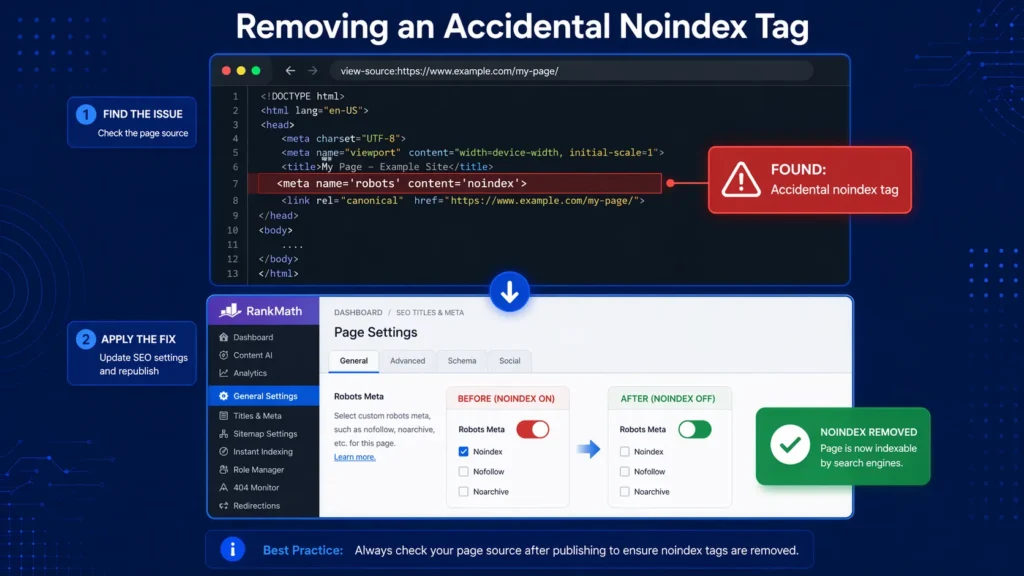
The most common WordPress indexing emergency is accidentally checking ‘Discourage search engines from indexing this site’ in Settings → Reading. This applies a noindex to every page on the website simultaneously. Check this setting first if you notice a sudden, widespread indexing loss.
Individual page noindex issues are managed through your SEO plugin — in Yoast: check the ‘Advanced’ tab on each page. In RankMath: check the ‘Advanced’ settings tab. Any page showing ‘noindex’ that should be indexed needs the setting changed to the default (follow site-wide settings).
WordPress Category and Tag Archive Indexing
WordPress automatically creates archive pages for every category, tag, author, and date — many of which end up in the ‘Crawled — currently not indexed’ report because they contain thin or duplicate content. The common fix: use your SEO plugin to noindex tag archive pages and date archive pages while keeping category pages indexed if they provide genuine navigation value.
WordPress Pagination Indexing
Paginated pages (/page/2, /page/3) often appear in indexing issues reports. Ensure proper canonical tags point paginated pages to the first page in the series. Alternatively, use noindex on paginated pages beyond page 1 if they do not provide independent value.
For comprehensive WordPress indexing diagnosis and resolution, a professional seo audit dubai identifies every indexing issue across your WordPress website — from accidental noindex settings to duplicate content problems — and provides a prioritised fix plan.
How to Request Re-Indexing After Fixing Issues
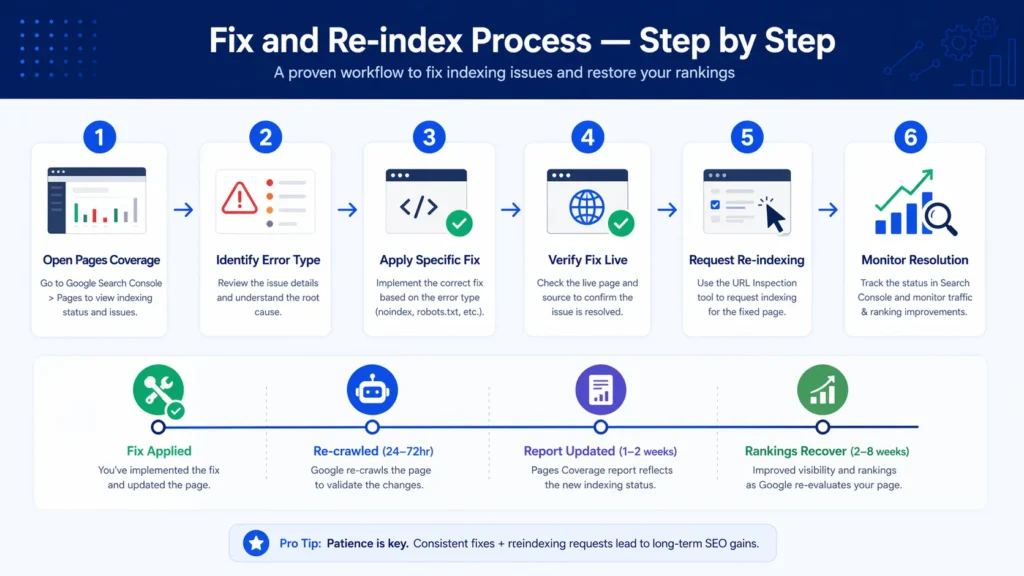
After applying any indexing fix, do not simply wait for Google to re-crawl the affected pages. Actively request re-indexing to accelerate the process:
- In Search Console, open the URL Inspection Tool from the left sidebar.
- Enter the exact URL of the page you have fixed.
- Click ‘Test Live URL’ to confirm the fix is working correctly.
- If the test shows the issue is resolved, click ‘Request Indexing’.
- Google will typically recrawl the page within 24 to 72 hours.
- Return to the Pages Coverage report after 1 to 2 weeks to verify the page has moved from Error to Valid.
For bulk indexing issues affecting many pages, submit an updated XML sitemap after fixing the errors. This signals to Google that a significant update has occurred and encourages broader recrawling.
What to Do When ‘Some Fixes Failed for Page Indexing Issues’
The notification ‘some fixes failed for page indexing issues’ appears in Google Search Console when you have requested validation for resolved issues but Google finds some pages still have the problem after recrawling. This is common and does not mean your fixes have failed entirely — it often means some pages needed additional work or the fixes were partially applied.
Troubleshooting Failed Fix Validations
- Click the notification to see which specific URLs still have the issue.
- Use the URL Inspection Tool on each failing URL to see exactly what Google currently finds.
- Compare what the live test shows with what you expected — the issue may be page-specific (e.g., the noindex tag was removed from most pages but not all).
- Apply additional fixes to the remaining affected URLs.
- Request re-indexing again for the remaining pages.
- If the same pages continue to fail after multiple fix attempts, the root cause may be different from what you originally diagnosed.
Expert Insight: Indexing Issues Patterns in UAE Business Websites
Expert Insight — Page Indexing Issues Across Hundreds of UAE Audits
After conducting indexing audits for UAE businesses across every industry and website platform, three patterns appear with striking consistency. First: the most impactful and most common indexing issue is pages accidentally set to noindex through SEO plugins — particularly after switching from one SEO plugin to another, where settings do not carry over and page-level settings revert to plugin defaults. The fix is almost always immediate, but the damage can take months to manifest if not caught early. Second: ‘Crawled — currently not indexed’ at scale almost always indicates a content duplication problem — not a technical issue. UAE businesses that create service pages for every emirate (Dubai, Abu Dhabi, Sharjah) with nearly identical content consistently see indexing issues across those pages because Google identifies them as duplicates. Adding genuinely unique content to each location page resolves this. Third: new pages indexing issues detected notifications are often caused by CMS pagination — blog and product list pages that generate new paginated pages as content is added, without proper canonical or noindex handling.
Case Study: Recovering 340 Pages From Indexing Issues
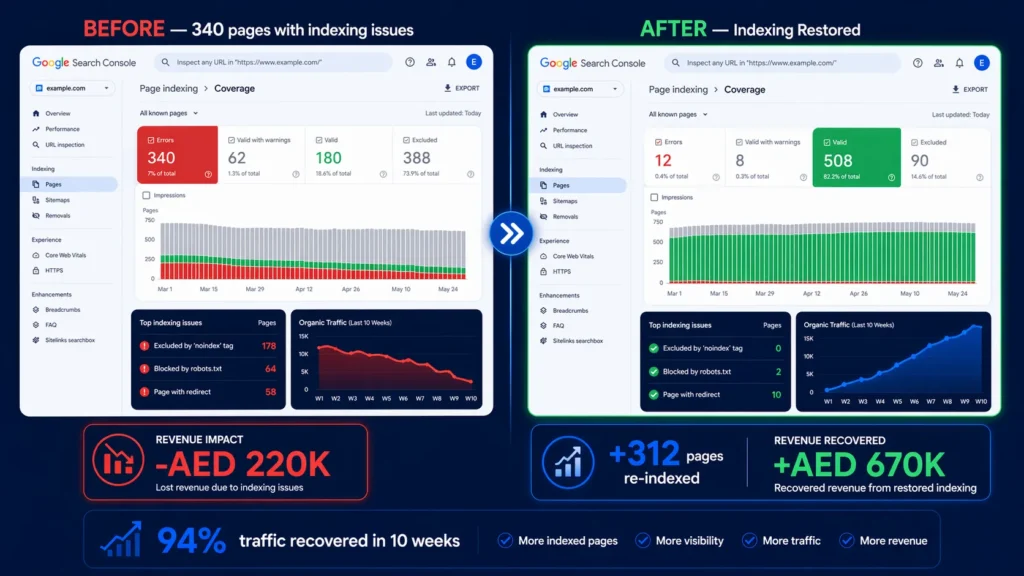
A Dubai-based B2B services company experienced a dramatic 62% drop in organic traffic over three months. Investigation revealed that 340 of their 520 website pages were showing ‘Excluded by noindex tag’ in the Pages Coverage report — despite never deliberately noindexing any content.
The audit revealed the cause: the company had switched from Yoast SEO to RankMath six months earlier. During the switch, RankMath’s default settings applied noindex to all post type archives and tag pages — but also to all custom post types the company used for case studies, team profiles, and service sub-pages. These 340 pages had been invisibly noindexed for six months without anyone noticing.
Here is the remediation:
- Identified all 340 noindexed pages through the Coverage report and a Screaming Frog crawl with noindex detection enabled.
- Categorised pages into: should be indexed (service pages, case studies, team profiles) and should stay noindexed (admin pages, thank-you pages).
- Updated RankMath settings to allow indexing for all relevant post types.
- Verified the noindex removal on 50 sample pages using View Page Source.
- Updated the XML sitemap to include all newly indexable pages.
- Requested re-indexing for the 40 highest-priority pages through the URL Inspection Tool
- Submitted the updated sitemap to accelerate broader recrawling.
Results: Within 6 weeks, 312 of the 340 pages were successfully indexed. Organic traffic recovered to 94% of pre-issue levels within 10 weeks. Service pages that had been invisible for 6 months began generating leads within days of indexing. The company estimated AED 220,000 in lost revenue attributable to the 6-month indexing gap.
Related Guides
Fixing indexing issues is most effective as part of a complete technical SEO strategy:
- What Is Technical SEO — Understand how indexing fits within the complete framework of technical search optimisation.
- How to Fix Crawl Errors in Google Search Console – illustrated dashboard showing 404 errors, redirect issues, and server errors being diagnosed and resolved.
- Core Web Vitals Optimization — Complete Guide Guide to Fix LCP, INP & CLS issues to boost rankings and user experience. Start improving today!
- How to Speed Up WordPress Website — Learn how to speed up WordPress website with 10 proven steps.
- How to Submit Sitemap to Google — Learn how to submit sitemap to Google Search Console in minutes. Complete guide for WordPress, Shopify & Squarespace.
Frequently Asked Questions — Fix Indexing Issues Google Search Console
What are page indexing issues?
Page indexing issues are problems that prevent Google from adding your web pages to its search index. They appear in the Google Search Console Pages Coverage report under the ‘Error’ and ‘Excluded’ tabs. Common examples include pages excluded by noindex tags, blocked by robots.txt, with duplicate content issues, with thin content, or affected by server errors. Pages with indexing issues cannot appear in Google search results.
How to fix Google page indexing issues?
Open Google Search Console → Indexing → Pages. Click each error type to see affected URLs. Apply the specific fix for each error: remove noindex tags from pages that should be indexed, fix robots.txt rules blocking important pages, improve thin content on ‘crawled — currently not indexed’ pages, add canonical tags to resolve duplicate content, and create 301 redirects for deleted pages. Then request re-indexing through the URL Inspection Tool.
How to fix page indexing issues in WordPress?
Common WordPress indexing fixes: (1) Check Settings → Reading — ensure ‘Discourage search engines’ is not checked. (2) Review individual page settings in your SEO plugin (Yoast or RankMath) and remove any accidental noindex settings. (3) Configure your SEO plugin to noindex tag archives and date archives to eliminate thin content issues. (4) After switching SEO plugins, audit all page-level indexing settings as they may not carry over correctly.
How to fix indexing issues on a website?
Work through this systematic process: (1) Open the Pages Coverage report in Search Console. (2) Prioritise Critical and Error status issues. (3) For each error type, apply the specific fix — noindex removal, robots.txt correction, canonical tag addition, content improvement, or redirect implementation. (4) Verify fixes using the URL Inspection Tool. (5) Request re-indexing for fixed pages. (6) Submit updated sitemap. (7) Monitor the Coverage report weekly for 4 to 6 weeks.
What causes ‘new page indexing issues detected’ notifications?
‘New page indexing issues detected’ notifications are sent by Google Search Console when newly published pages or previously unnoticed existing pages develop indexing problems. Common causes include: new plugin updates that change noindex settings, recently added pages with thin content, pages created with incorrect canonical tags, and new paginated archive pages generated as content is added without proper noindex or canonical handling.
What does ‘crawled — currently not indexed’ mean and how do I fix it?
‘Crawled — currently not indexed’ means Google has visited these pages but decided not to add them to its index — typically due to thin content, duplicate content, or low quality. Fix by: substantially improving the page content with unique, expert information (target minimum 600 to 800 words of genuine value), adding meaningful internal links from indexed pages, removing duplicate content, and using canonical tags to identify the preferred version of similar pages. Then request re-indexing.
How to fix Google index coverage issues for e-commerce websites?
E-commerce indexing fixes focus on: (1) Applying noindex to filtered product pages and search result pages. (2) Adding canonical tags to product pages accessible via multiple category paths. (3) Handling out-of-stock pages — either add content and keep them indexed or redirect to category pages. (4) Removing paginated product list pages beyond page 2 from the index. (5) Ensuring all main product and category pages are included in the sitemap with no redirect URLs.
What is a ‘page with redirect’ indexing issue?
A ‘page with redirect’ indexing issue means URLs in your sitemap or targeted by internal links are redirecting to other pages rather than serving content directly. Google flags these because sitemaps and internal links should point to final canonical URLs, not URLs that redirect. Fix by updating your sitemap and internal links to point directly to the canonical destination URL, eliminating the redirect hop.
How long does it take for fixed indexing issues to resolve?
After applying a fix and requesting re-indexing through the URL Inspection Tool, most individual pages are recrawled within 24 to 72 hours. The Pages Coverage report updates within 1 to 2 weeks as Google processes the recrawl results. For bulk issues affecting many pages, expect 2 to 6 weeks for the coverage report to fully reflect all resolutions. Rankings typically recover within 2 to 8 weeks of successful re-indexing.
Why does Google Search Console say ‘some fixes failed for page indexing issues’?
‘Some fixes failed’ means you requested validation for an issue but Google found some pages still have the problem after recrawling. This commonly occurs when: fixes were applied to most but not all affected pages, the fix was correct but Google recrawled before the fix was fully deployed, or the root cause of the issue is different on some pages than others. Use the URL Inspection Tool on the specifically failing URLs to diagnose each one individually.
What is the difference between ‘excluded’ and ‘error’ in the Pages report?
In the Search Console Pages report: Error means pages that Google tried to index but could not due to a technical problem — these pages are definitely not in the index and require fixing. Excluded means pages Google has chosen not to index, which may be intentional (properly noindexed pages, canonical duplicates) or unintentional (accidentally noindexed important pages). Always review Excluded pages to verify that everything excluded is intentionally excluded.
Can I fix indexing issues myself or do I need a technical SEO expert?
Many indexing issues — removing accidental noindex tags, updating robots.txt, fixing sitemap redirect URLs — can be fixed by a motivated non-developer with access to their CMS and Search Console. However, diagnosing the root cause of complex issues (especially ‘crawled — currently not indexed’ at scale or systematic duplicate content problems) often requires specialist expertise. For Dubai businesses with significant indexing problems, our seo agency dubai provides expert indexing diagnosis and comprehensive fix implementation.
How do I prevent indexing issues from recurring?
Prevent indexing issue recurrence by: setting up email alerts in Google Search Console for new coverage issues (Settings → Email preferences), conducting a monthly Pages Coverage report review, testing all page-level SEO settings before publishing new content, auditing your sitemap quarterly to remove redirects and 404 URLs, and establishing a testing protocol before making significant CMS changes (plugin switches, theme updates, or site migrations).
What is ‘alternate page with canonical tag’ in Search Console?
‘Alternate page with canonical tag’ appears in the Excluded section — it means a page exists but has a canonical tag pointing to a different (preferred) page. This is usually the CORRECT and expected behaviour for pages intentionally set as duplicates — the canonical tag is working as designed. Only investigate if the page appearing as ‘alternate’ is one you intended to be indexed directly (which would indicate a canonical tag pointing to the wrong page).
How often should I check for indexing issues?
Check Google Search Console for new indexing issues at minimum monthly — weekly if your website publishes content frequently or has recently undergone significant changes (plugin updates, migrations, or content restructuring). Google sends email alerts when new page indexing issues are detected, but only if you have email notifications configured in Search Console settings. Our google search console service dubai provides comprehensive monthly indexing monitoring and resolution as part of our technical SEO management.
Conclusion: Fix Indexing Issues to Unlock Your Website’s Ranking Potential
Knowing how to fix indexing issues in Google Search Console is one of the most foundational technical SEO skills available to any website owner or marketer. Pages that are not indexed cannot rank — regardless of how well-written their content is, how many backlinks they have earned, or how carefully they have been optimised for target keywords.
The most important insight from this guide: indexing issues are specific and fixable. Unlike ranking problems — which can have dozens of contributing factors — every page indexing issue has a specific cause that can be identified and resolved. A noindex tag can be removed in minutes. A robots.txt block can be fixed in under an hour. A canonical tag issue can be corrected across an entire website in a day.
Start by opening your Pages Coverage report today. Note how many pages are in the Error and Excluded tabs. Work through each error type systematically using the fixes in this guide. Request re-indexing for every corrected page and monitor your coverage report weekly for the following month. For Dubai businesses with significant indexing issues requiring expert diagnosis and comprehensive resolution, our technical seo service dubai provides complete indexing audit and fix implementation — ensuring every important page on your website is correctly indexed and eligible to rank. Get your free technical SEO audit today.