



| Key Takeaway A sitemap is a file — typically XML format — that lists all the important URLs on your website and tells Google where to find them. How To submit a sitemap to Google: go to Google Search Console → Sitemaps (under Indexing) → enter your sitemap URL → click Submit. WordPress sitemaps are usually at yourdomain.com/sitemap.xml or yourdomain.com/sitemap_index.xml. Submitting your sitemap does not guarantee indexing — it tells Google where to look, then Google decides what to index. |
New website launched but your pages are not appearing in Google search results. Or you have added important new content that should be ranking but Google has not discovered it yet. In both situations, the fastest solution is understanding how to submit a sitemap to Google — the direct communication channel between your website and Google’s indexing system.
This guide covers everything from what a sitemap is and why it matters, to the exact step-by-step process to submit a sitemap to Google Search Console for WordPress, Shopify, Squarespace, and every other major platform. By the end, you will have your sitemap submitted and your pages on Google’s crawl radar.
What Is a Sitemap in SEO?
A sitemap in SEO is a file — most commonly in XML format — that provides search engines with a structured list of all the important URLs on your website, along with optional metadata about each page such as when it was last modified, how frequently it changes, and its relative priority compared to other pages.
Think of a sitemap as a table of contents for your website, written specifically for search engine crawlers rather than human visitors. According to Google Search Central’s sitemap documentation, Google recommends submitting a sitemap when your site is large, new, has many pages with few external links, or uses rich media content like video and images.
What Is an XML Sitemap in SEO?
An XML sitemap is the standard machine-readable format that search engines use to process sitemap information. Unlike an HTML sitemap (which is a human-readable page listing your site’s pages), an XML sitemap is written in structured code that Googlebot reads directly. Here is what a basic XML sitemap entry looks like:
| 📄 XML Sitemap Sample Structure<?xml version=’1.0′ encoding=’UTF-8′?> <urlset xmlns=’http://www.sitemaps.org/schemas/sitemap/0.9′> <url> <loc>https://seodubaipro.com/local-seo-services-dubai/</loc> <lastmod>2025-12-01</lastmod> <changefreq>weekly</changefreq> <priority>0.9</priority> </url> </urlset> |
Each <url> entry tells Google the exact page address (<loc>), when it was last updated (<lastmod>), how often it changes (<changefreq>), and its relative importance (<priority>). While Google does not strictly follow changefreq and priority values, they provide useful hints that influence crawl frequency.
Types of Sitemaps — Complete Reference
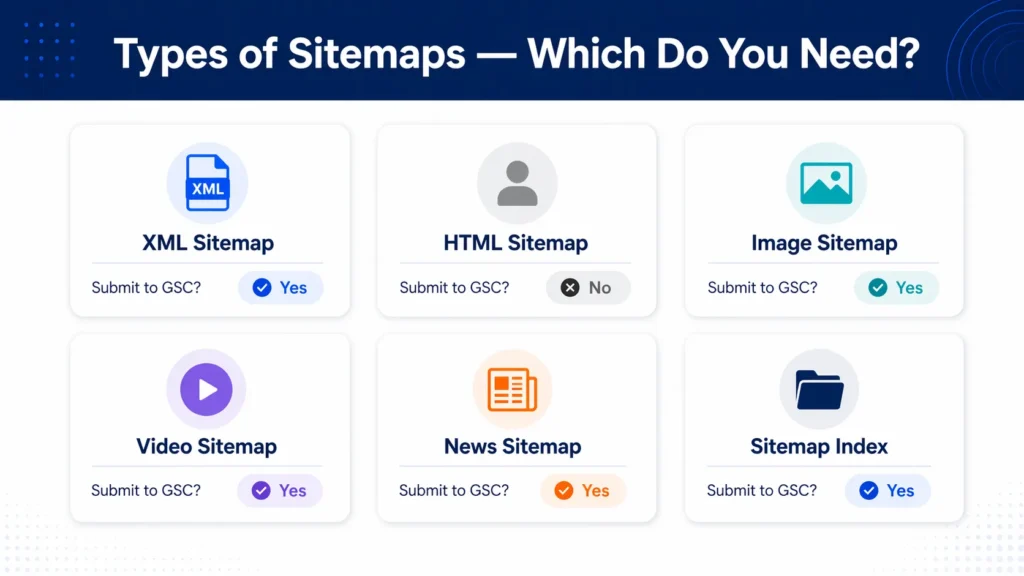
Before learning how to submit a sitemap to Google, it is important to understand which type of sitemap your website needs. Different sitemap types serve different purposes:
| Sitemap Type | What It Contains | Best For | Submit to GSC? |
| XML Sitemap | URLs, lastmod, changefreq, priority | All websites — primary sitemap | Yes — essential |
| HTML Sitemap | Human-readable page directory | User navigation | No — for users only |
| Image Sitemap | Image URLs, captions, titles | Photography, e-commerce, media | Yes — improves image indexing |
| Video Sitemap | Video URLs, duration, thumbnails | Video-heavy websites | Yes — improves video indexing |
| News Sitemap | News article URLs, publication date | News publishers | Yes — required for Google News |
| Sitemap Index | Links to multiple child sitemaps | Large sites, e-commerce | Yes — submit index only |
What Is an HTML Sitemap in SEO?
An HTML sitemap is a human-readable page on your website that lists links to all your main pages — similar to a table of contents. It is designed for users who cannot find a page through normal navigation, not for search engines. While HTML sitemaps have some internal linking SEO value, they are not submitted to Google Search Console and are separate from your XML sitemap.
Video Sitemap
A video sitemap is an extension of your main XML sitemap that provides additional metadata about video content on your pages — including video title, description, thumbnail URL, duration, and content location. If your website hosts video content that you want Google to index for video search, a video sitemap significantly improves the likelihood of that content appearing in Google Video results.
Sitemap Priority and Best Practices
Sitemap XML priority is a value between 0.0 and 1.0 that indicates the relative importance of each page within your website. It does not affect your ranking relative to other websites — it only tells Google which of your own pages you consider most important for crawling.
| Page Type | Recommended Priority | Recommended changefreq | Reason |
| Homepage | 1.0 | daily | Highest value page |
| Main service/category pages | 0.8–0.9 | weekly | Core commercial pages |
| Blog posts / articles | 0.6–0.7 | monthly | Informational content |
| Product pages | 0.7–0.8 | weekly | E-commerce revenue pages |
| Tag/category archive | 0.3–0.5 | weekly | Lower priority — can be excluded |
| Contact / About pages | 0.5 | monthly | Important but not crawl priority |
Sitemap priorities should reflect genuine hierarchy — not be set to 1.0 for every page. When everything is top priority, the signal has no value. Differentiate your pages thoughtfully: highest priority for revenue-generating pages, medium for supporting content, lower for archive and utility pages.
Changefreq Best Practices
The changefreq attribute tells Google how often a page is likely to change. Common values are: always, hourly, daily, weekly, monthly, yearly, and never. While Google does not strictly follow these hints, accurate changefreq values help crawlers allocate attention efficiently. News articles can use hourly or daily; evergreen blog posts should use monthly; pages that never change should use yearly or never.
Sitemap Best Practices Summary
- Keep your sitemap under 50,000 URLs and under 50MB uncompressed — use a sitemap index for larger sites
- Include only canonical URLs — never include URLs with noindex tags or that redirect to other pages
- Include only HTTPS URLs — never mix HTTP and HTTPS in the same sitemap
- Do not include pages blocked by robots.txt — including blocked pages in your sitemap sends conflicting signals
- Update lastmod dates only when content genuinely changes — do not update all dates simultaneously to manipulate crawl frequency
- Exclude thin content, duplicate pages, tag archives, and search result pages
How to Find Your Sitemap URL
Before you can submit a sitemap to Google, you need to know where your sitemap is located. Common sitemap locations by platform:
WordPress Sitemap Location
WordPress sitemap location depends on which SEO plugin you use:
- Yoast SEO (Yoast XML sitemap URL): yourdomain.com/sitemap_index.xml — this is the sitemap index that links to individual sitemaps for posts, pages, and other content types.
- RankMath: yourdomain.com/sitemap_index.xml — same structure as Yoast.
- Default WordPress sitemap (5.5+): yourdomain.com/wp-sitemap.xml — WordPress generates a basic sitemap automatically without any plugin.
- All in One SEO: yourdomain.com/sitemap.xml
Other Platform Sitemap Locations
- Shopify: yourdomain.com/sitemap.xml — automatically generated, cannot be customised
- Squarespace: yourdomain.com/sitemap.xml — automatically generated
- Wix: yourdomain.com/sitemap.xml — automatically generated
- Joomla: Requires the Xmap or OSMap extension. After installation: yourdomain.com/sitemap.xml
- Next.js (next-sitemap): Using the next-sitemap package: yourdomain.com/sitemap.xml — generated at build time
Pro Tip — Verify Your Sitemap Before Submitting
Before submitting your sitemap to Google, always verify sitemap XML is valid and error-free. Open your sitemap URL in a browser — it should display structured XML code, not a 404 error or blank page. Then paste the URL into the free XML Sitemap Validator at xml-sitemaps.com to check for structural errors. Submitting an invalid or error-filled sitemap can cause Google to ignore it entirely or process it incorrectly.
How to Submit Sitemap to Google — Step-by-Step
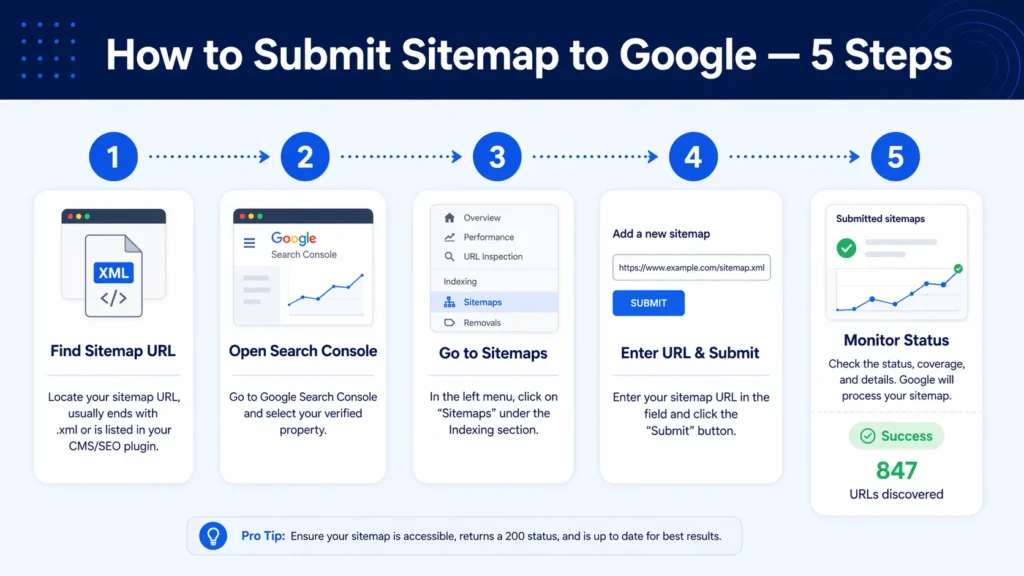
Here is the exact process to submit a sitemap to Google Search Console — the official method recommended by Google:
Step 1: Open Google Search Console
- Go to search.google.com/search-console
- Log in with your Google account
- Select your verified property (your website) from the dropdown
If you have not yet verified your website in Search Console, verification is the essential first step. Our google search console service dubai handles complete Search Console setup, verification, and ongoing management — so you have accurate data on how Google is crawling and indexing your website.
Step 2: Navigate to the Sitemaps Report
- In the left sidebar, click ‘Indexing’
- Click ‘Sitemaps’ in the expanded menu
- You will see the Sitemaps interface with a field labeled ‘Add a new sitemap’
Step 3: Enter Your Sitemap URL
- Your domain will already appear in the field (e.g., https://yourdomain.com/)
- Type the path after your domain — typically: sitemap_index.xml or sitemap.xml
- The full URL should look like: https://yourdomain.com/sitemap_index.xml
- Click the ‘Submit’ button
Step 4: Verify the Submission Status
After submitting, Google Search Console will immediately attempt to fetch and process your sitemap. The status will show one of:
- Success: Google successfully read your sitemap and is queuing the URLs for crawling.
- Couldn’t fetch: Google could not access your sitemap URL. Check the URL is correct and the file is publicly accessible.
- Has errors: Google accessed the sitemap but found structural errors. Click the error to see details and fix the XML.
A successful submission shows the total number of URLs discovered in your sitemap and the date Google last read it. This number is URLs discovered — not URLs indexed. Some discovered URLs may not be indexed if Google determines they are low quality, duplicate, or blocked.
Step 5: Monitor Indexing Progress
After submitting, check the Sitemaps report again in 3 to 7 days. You will see the number of URLs Google has submitted vs. the number it has indexed. A significant gap between submitted and indexed URLs indicates either a content quality issue or a technical barrier — investigate with the URL Inspection Tool for specific pages.
How to Submit Sitemap From WordPress to Google Search Console
Submitting a sitemap from WordPress to Google Search Console follows the same process as above — with one specific detail: use your sitemap index URL, not an individual sitemap.
How to Submit Yoast Sitemap to Google
- In WordPress, go to: SEO → General → Features → XML Sitemaps (ensure it is enabled)
- Click the ‘?’ next to XML Sitemaps and then ‘See the XML sitemap’ — this shows your sitemap index URL
- Your Yoast XML sitemap URL will be: yourdomain.com/sitemap_index.xml
- Go to Google Search Console → Indexing → Sitemaps
- Enter: sitemap_index.xml in the field and click Submit
Yoast creates separate child sitemaps for each content type: post-sitemap.xml, page-sitemap.xml, category-sitemap.xml. Submitting only the sitemap_index.xml tells Google about all of them — you do not need to submit each child sitemap individually.
How to Submit Sitemap From WordPress Using RankMath
- In WordPress dashboard, go to: RankMath → Sitemap Settings
- Ensure the sitemap is enabled and note your sitemap index URL
- RankMath generates sitemaps at: yourdomain.com/sitemap_index.xml
- Submit this URL in Google Search Console as described above
How to Submit Sitemap to Google — Platform-Specific Guides
How to Submit Shopify Sitemap to Google
Shopify automatically generates a sitemap at yourdomain.com/sitemap.xml — no manual creation is required. The Shopify sitemap includes your products, collections, blog posts, and pages automatically.
- Open Google Search Console and select your Shopify store property
- Go to Indexing → Sitemaps
- Enter: sitemap.xml in the field
- Click Submit — Shopify’s sitemap is always at the root level
Note: Shopify sitemaps cannot be customised — Shopify controls which pages appear. Ensure your products and collections are published and active for them to appear in the sitemap.
How to Submit Squarespace Sitemap to Google
Squarespace also automatically generates a sitemap at yourdomain.com/sitemap.xml. The submission process is identical:
- Open Google Search Console → Indexing → Sitemaps
- Enter: sitemap.xml in the field
- Click Submit
Squarespace sitemaps include all enabled pages. If a page is not appearing in the sitemap, check that it is not set to ‘Not linked’ or password-protected in your Squarespace page settings.
How to Submit Sitemap to Bing Webmaster Tools
For complete search engine coverage, also submit your sitemap to Bing Webmaster Tools — which powers both Bing and DuckDuckGo search results. Bing webmaster tools submit sitemap process:
- Go to bing.com/webmasters and sign in with a Microsoft account
- Add and verify your website property
- Go to Sitemaps in the left sidebar
- Enter your full sitemap URL and click Submit
E-Commerce Sitemap Best Practices
E-commerce sitemaps have unique challenges because of their scale — thousands of products, multiple category pages, filtered views, and out-of-stock pages all create sitemap management decisions that standard websites do not face.
What to Include in an E-Commerce Sitemap
- All in-stock, published product pages — high priority (0.7–0.9)
- All product category and collection pages — high priority (0.8–0.9)
- Brand pages if your store features multiple brands
- Blog posts and editorial content — medium priority (0.6–0.7)
- Core information pages: About, Contact, Shipping, Returns — medium priority (0.5)
What to EXCLUDE from an E-Commerce Sitemap
- Out-of-stock product pages with no content (use noindex or redirect to category instead)
- Filtered search result pages (/products?colour=blue&size=medium)
- Cart, checkout, and account pages
- Duplicate product pages from URL parameters
- Paginated pages beyond page 2 in most cases
For large e-commerce stores with thousands of products, use a sitemap index file that splits your sitemap into logical categories — a products sitemap, a categories sitemap, and a content sitemap — each under the 50,000 URL limit.
Robots.txt and Sitemap XML — The Relationship
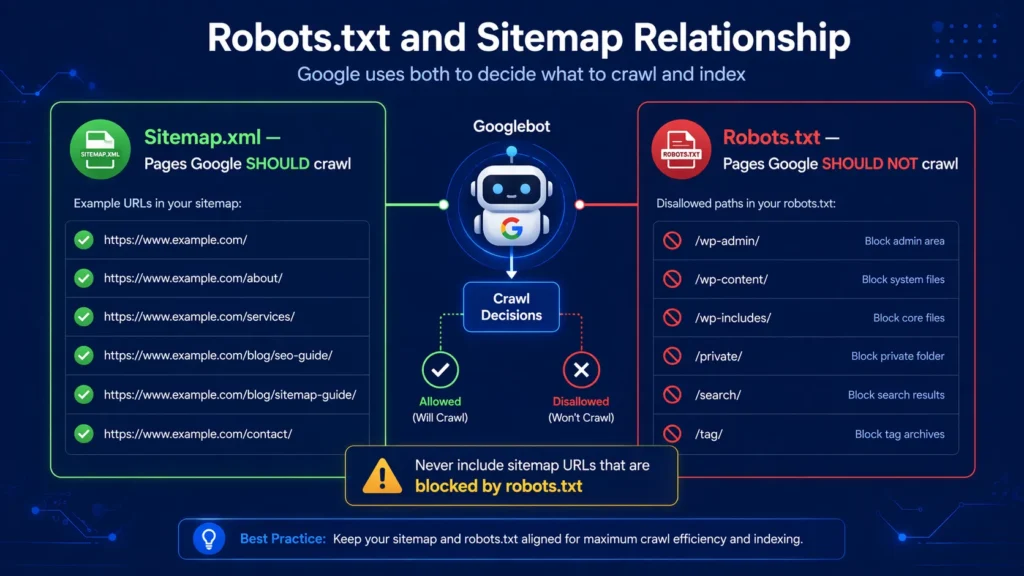
Robots.txt and sitemap XML work together as a complementary pair of technical SEO signals. Your robots.txt file tells Google which pages NOT to crawl. Your sitemap tells Google which pages it SHOULD crawl. Understanding the relationship between the two prevents one of the most common technical SEO errors:
Never include a URL in your sitemap that is blocked by your robots.txt file. This creates a direct contradiction — your sitemap says ‘please crawl this’ while your robots.txt says ‘do not enter here’. Google will honour the robots.txt block but flag the inconsistency as an error in Search Console.
The correct approach: (1) Decide which pages should be crawled and indexed. (2) Block pages that should not be crawled in robots.txt. (3) Include only crawlable, indexable pages in your sitemap. (4) Add your sitemap URL to your robots.txt file using: Sitemap: https://yourdomain.com/sitemap_index.xml — this helps all search engines discover your sitemap even without a manual submission.
Checking for robots.txt and sitemap conflicts is a core component of every seo audit dubai we conduct. These conflicts are silent ranking suppressors — Google simply ignores the affected pages without reporting a visible error in most cases.
Hreflang and Sitemap XML for Multilingual Websites
Hreflang sitemap XML is required for websites that serve content in multiple languages or for multiple regions. The hreflang attribute tells Google which version of a page to show to users in each language or region.
For UAE businesses serving both Arabic and English audiences — or for international businesses targeting multiple countries — implementing hreflang correctly through your sitemap is critical for ensuring the right page version appears for each language search.
Hreflang Implementation in Sitemap
Each URL in a multilingual sitemap includes xhtml:link tags pointing to all language/region variants of the same page. For example, an English page at /en/services/ and an Arabic version at /ar/services/ should each reference the other in their sitemap entries. This bilateral reference is essential — hreflang must always point in both directions or Google ignores it.
Multilingual sitemap implementation with correct hreflang is a complex technical SEO task. Our technical seo service dubai handles complete hreflang sitemap implementation — ensuring your Arabic and English pages reach the right audiences in Google UAE search results.
Expert Insight: Sitemap Submission for UAE Business Websites
| 🎯 Expert Insight — Sitemap Issues Across UAE WebsitesAfter auditing hundreds of UAE business websites through our technical SEO practice, sitemap problems appear with striking frequency. The three most common issues: First, sitemaps that include noindex pages — I have seen UAE business websites with 40% of their sitemap URLs tagged noindex, creating direct confusion for Googlebot about which pages should be indexed. Second, outdated sitemaps that were submitted once and never updated — they still list pages from the original website launch that no longer exist, creating 404 errors on every crawl. Third, WordPress websites where the SEO plugin was changed (from Yoast to RankMath, for example) but the old sitemap URL was never updated in Search Console — meaning Google continued crawling an outdated, inactive sitemap for months. Sitemap health monitoring should be a monthly task — not a one-time setup. |
Case Study: How Fixing a Sitemap Issue Recovered Indexed Pages
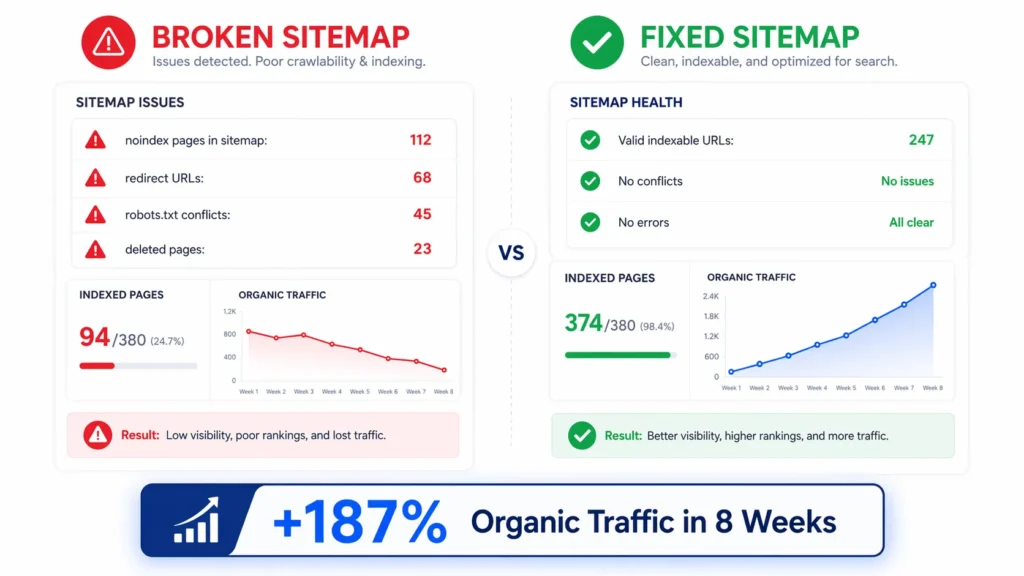
A Dubai-based professional services firm launched a new website and submitted their sitemap to Google Search Console within the first week. Six months later, despite having 380 pages of content, only 94 pages appeared in Google’s index. Traffic had plateaued and key service pages were not appearing for target keywords.
A comprehensive sitemap and indexing audit revealed:
- Their WordPress sitemap was being generated by two plugins simultaneously — Yoast SEO and All in One SEO were both active, creating duplicate sitemaps with conflicting information
- 112 pages in the sitemap had noindex tags applied — they were listed in the sitemap but excluded from indexing, creating a direct contradiction
- 68 pages in the sitemap were returning 301 redirects to canonical versions — these should not have been in the sitemap
- Their robots.txt was blocking the /services/ directory — meaning all 45 service pages listed in the sitemap were blocked from crawling
- The sitemap had not been updated in 4 months and contained 23 URLs that had been deleted and were returning 404 errors
The remediation we implemented:
- Deactivated All in One SEO and configured Yoast as the sole sitemap generator.
- Removed noindex tags from all 112 pages that should have been indexed.
- Removed redirect URLs from the sitemap — leaving only canonical live pages.
- Fixed robots.txt to allow crawling of the /services/ directory.
- Regenerated a clean sitemap with 247 valid, indexable URLs.
- Submitted the corrected sitemap through Search Console and requested re-indexing for critical pages.
Results within 8 weeks: Indexed pages grew from 94 to 374 — a recovery of 280 pages. Service pages that had been blocked by the robots.txt issue began ranking for primary keywords within 3 weeks of the fix. Organic traffic increased by 187%. The business had been losing significant local search visibility for months due to this combination of sitemap and robots.txt errors — all of which were invisible from the website’s front end.
Related Guides
Sitemap submission is most powerful as part of a complete technical SEO strategy:
- What Is Technical SEO — How sitemaps fit into the complete framework of technical SEO.
- How to Fix Crawl Errors in Google Search Console – illustrated dashboard showing 404 errors, redirect issues, and server errors being diagnosed and resolved.
- Core Web Vitals Optimization — Complete Guide Guide to Fix LCP, INP & CLS issues to boost rankings and user experience. Start improving today!
- How to Speed Up WordPress Website — Learn how to speed up WordPress website with 10 proven steps.
Frequently Asked Questions — How to Submit Sitemap to Google
What is an HTML sitemap in SEO?
An HTML sitemap is a human-readable page on your website that lists links to all your main content sections and pages. Unlike an XML sitemap (which is for search engines), an HTML sitemap is designed for visitors who are having difficulty navigating your site. It has some internal linking SEO value but is not submitted to Google Search Console — that is reserved for XML sitemaps.
How many sitemaps can I submit to Google?
You can submit up to 500 sitemaps per property in Google Search Console. For most websites, one sitemap index file (which links to multiple child sitemaps) is all you need. Each individual sitemap file can contain up to 50,000 URLs. If your website has more than 50,000 URLs, create a sitemap index that references multiple sitemap files, each under the 50,000 URL limit.
How often should I submit my sitemap to Google?
You only need to submit your sitemap to Google once — Google will continue to re-read it automatically after the initial submission. However, if you make significant changes to your sitemap structure (adding a new content type, fixing major errors, or restructuring your URL architecture), re-submitting the sitemap signals to Google that there has been a significant update worth re-processing.
How to create and submit a sitemap to Google?
WordPress websites: install Yoast SEO or RankMath — both generate sitemaps automatically. Find the sitemap URL (yourdomain.com/sitemap_index.xml) and submit it in Google Search Console → Indexing → Sitemaps. Non-WordPress websites: use a free sitemap generator like XML-Sitemaps.com to generate a sitemap file, upload it to your website’s root directory, then submit the URL in Google Search Console.
How to submit Shopify sitemap to Google?
Shopify automatically generates a sitemap at yourdomain.com/sitemap.xml — no creation is needed. In Google Search Console: select your Shopify store property → Indexing → Sitemaps → enter ‘sitemap.xml’ in the field → click Submit. Shopify’s sitemap is updated automatically as you add or remove products, collections, blog posts, and pages.
How to submit Squarespace sitemap to Google?
Squarespace automatically generates a sitemap at yourdomain.com/sitemap.xml. In Google Search Console: select your Squarespace site property → Indexing → Sitemaps → enter ‘sitemap.xml’ → click Submit. Ensure your Squarespace pages are not password-protected or set to ‘Not linked’ — these pages will not appear in the sitemap.
How to submit Yoast sitemap to Google?
Yoast SEO generates a sitemap index at yourdomain.com/sitemap_index.xml. To submit: in Google Search Console → Indexing → Sitemaps, enter ‘sitemap_index.xml’ in the URL field and click Submit. Yoast’s sitemap index links to separate child sitemaps for each content type — submitting the index is sufficient; you do not need to submit each child sitemap individually.
How to submit sitemap to Google with parameters?
If your website uses URL parameters that create multiple versions of the same page, do NOT include parameter URLs in your sitemap — only include the canonical version of each page. For managing parameterised URLs, use Google Search Console’s URL Parameters tool (under Legacy Tools) to tell Google how to handle specific parameters. This prevents Google from crawling thousands of near-duplicate parameter URLs.
How many URLs can I submit in a Google sitemap at once?
Each individual sitemap file can contain a maximum of 50,000 URLs and must be no larger than 50MB uncompressed. For websites with more than 50,000 URLs, create a sitemap index file that references multiple sitemap files, each under the 50,000 URL limit. The sitemap index itself can reference up to 50,000 child sitemaps, giving a theoretical maximum of 2.5 billion URLs across all sitemaps.
How do I know if my sitemap has been indexed by Google?
In Google Search Console → Indexing → Sitemaps, your submitted sitemap will show: ‘Last read’ date (when Google last processed it), ‘Discovered URLs’ count (how many URLs Google found in the sitemap), and status (‘Success’ or error). The gap between discovered URLs and indexed URLs (visible in the Pages report) shows how many of your sitemap URLs Google has actually added to its index.
Why is my sitemap showing errors in Google Search Console?
Common sitemap errors include: ‘Couldn’t fetch’ (Google cannot access the sitemap URL — check the URL is correct and publicly accessible), ‘Has errors’ (XML formatting issues — validate your sitemap with an XML validator), URLs returning 404 errors (deleted pages still in the sitemap), and URLs blocked by robots.txt (pages in the sitemap that robots.txt prevents Google from crawling).
How to submit a sitemap from WordPress to Google Search Console?
Find your WordPress sitemap URL — with Yoast or RankMath: yourdomain.com/sitemap_index.xml. With default WordPress (5.5+): yourdomain.com/wp-sitemap.xml. Then: log into Google Search Console → select your property → Indexing → Sitemaps → type ‘sitemap_index.xml’ or ‘wp-sitemap.xml’ in the field → click Submit. Google will confirm the submission and begin processing your URLs.
Should I include images in my sitemap?
For websites with important images — photography portfolios, e-commerce product images, real estate property photos — adding image information to your XML sitemap significantly improves image indexing and visibility in Google Image Search. Add <image:image> tags within your <url> entries to provide Google with image URL, caption, title, and geo-location information for each image.
Does submitting a sitemap guarantee Google will index my pages?
No — submitting a sitemap tells Google where your pages are and asks it to crawl them. Google then makes its own independent decision about whether to index each page based on content quality, uniqueness, technical health, and authority. Pages with thin content, duplicate content, or technical issues may be discovered through your sitemap but not indexed. The URL Inspection Tool in Search Console shows Google’s indexing decision for any specific page.
Can I submit a sitemap to Google without Search Console?
You can ping Google to notify it of a sitemap update using: google.com/ping?sitemap=https://yourdomain.com/sitemap.xml — this is a legacy method that still works but provides no confirmation or monitoring data. The preferred and recommended method is always Google Search Console, which provides submission confirmation, error reporting, and ongoing monitoring data. Setting up Search Console is free and essential for any serious website. Our seo agency dubai sets up and configures Search Console as part of every SEO engagement.
Conclusion: Submitting Your Sitemap to Google Is Just the Beginning
Understanding how to submit a sitemap to Google is an essential technical SEO foundation — but it is the beginning of an ongoing process, not a one-time task. A sitemap submitted once and never monitored can silently accumulate errors, outdated URLs, and conflicting signals that undermine your indexing over time.
The businesses that maintain clean, accurate sitemaps — with no noindex conflicts, no redirect URLs, and no robots.txt contradictions — consistently have better indexing coverage and faster discovery of new content than those who treat sitemap submission as a launch-day checkbox.
Submit your sitemap today through Google Search Console. Then set a monthly reminder to check the Sitemaps report for errors, verify the discovered URL count is accurate, and review the Pages coverage report for any pages that are discovered but not indexed. This 15-minute monthly habit protects one of the most foundational elements of your website’s search visibility.
Need expert help with sitemap setup, Search Console configuration, or a complete technical SEO audit for your website? Our technical seo service dubai handles complete sitemap creation, submission, ongoing monitoring, and all technical SEO elements that ensure Google can find, crawl, and index every important page on your website. Get your free technical SEO audit today.