


| Key Takeaway A 404 error occurs when a browser or search engine requests a page that does not exist on your server. To fix 404 errors: find them in Google Search Console (Indexing → Pages → Not Found), then apply the correct fix for each — create a 301 redirect to the most relevant live page, restore the deleted content, or fix the broken internal link. Priorities 404s that have external backlinks pointing to them — these are actively losing link equity every day. |
A visitor clicks a link on your website and sees: ‘Page Not Found’. A Google bot crawls your site and encounters a URL that returns nothing. A potential customer who arrived from a backlink on an external website is met with a blank error page and immediately leaves. Every 404 error on your website is a broken experience — for users and for Google.
Knowing how to fix 404 errors systematically is one of the most impactful technical SEO maintenance tasks any website owner can perform. This guide covers every scenario — from finding 404 errors in Google Search Console to fixing them in bulk after a website migration, including the specifically different problem of soft 404 errors that are often more damaging and harder to detect.
What Is a 404 Error?
A 404 error is an HTTP status code that means the server cannot find the requested URL. As explained in Google’s HTTP status code documentation, a 404 response tells the browser and search engines that the page does not exist at the requested address — either because it was deleted, moved without a redirect, or never existed.
The 404 in ‘HTTP 404 Not Found’ refers to the HTTP status code that the server sends back in its response header. When Google’s crawler encounters a 404, it marks the URL as not found, removes it from the index if it was previously indexed, and stops crawling that URL until it is either restored or redirected.
Types of 404 Errors — Hard 404 vs Soft 404
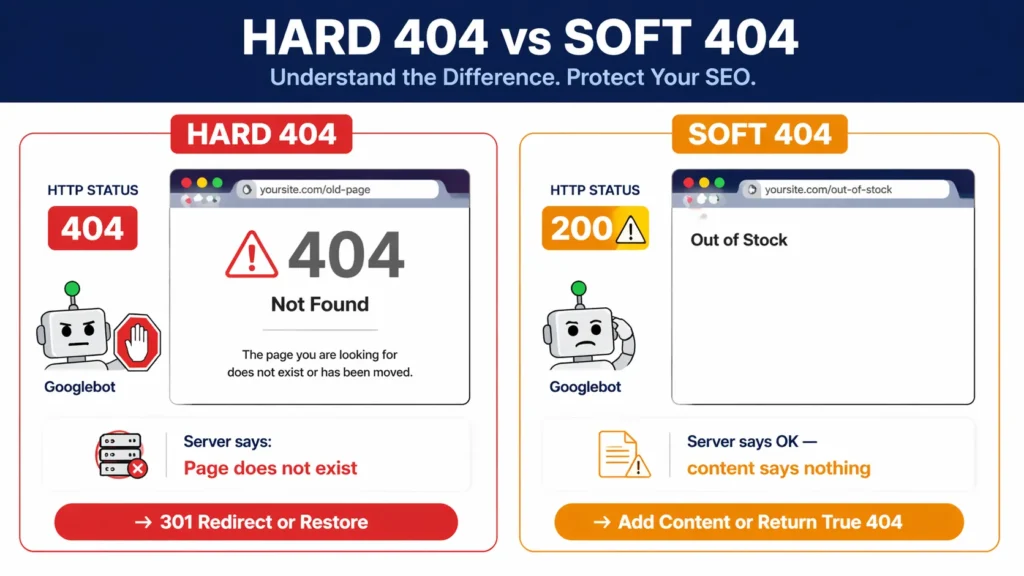
Understanding the two types of 404 errors is essential because they require completely different fixes. Treating them the same way is one of the most common technical SEO mistakes:
Hard 404 Errors
A hard 404 is a page that returns an HTTP 404 status code — the server explicitly reports that the page does not exist. This is the correct, expected behaviour for pages that genuinely should not be there. Google understands hard 404s, processes them correctly, and handles them appropriately. The problem arises when pages that SHOULD exist return 404s.
Soft 404 Errors
A soft 404 is technically more damaging — it is a page that returns an HTTP 200 (success) status code but contains no meaningful content. The server says ‘everything is fine here’ while serving an essentially empty or useless page. Google’s algorithm detects these as soft 404s because despite the positive status code, the page has none of the content signals that indicate a real, valuable page.
Common soft 404 examples: an out-of-stock e-commerce product page that only shows ‘Out of Stock — nothing else’, a WordPress tag archive page with no posts assigned to that tag, or an empty search results page (showing ‘No results found’) that returns a 200 status.
Why Soft 404 Errors Are More Dangerous
Soft 404 errors are more damaging than hard 404s for two reasons: they are invisible to basic monitoring tools (which only look for HTTP 404 status codes), and they waste crawl budget more aggressively because Google keeps crawling them expecting to find content. A hard 404 signals ‘stop coming here’ — a soft 404 signals ‘there is something here’ while delivering nothing.
| Error Type | HTTP Code | What Google Sees | Correct Fix |
| Hard 404 | 404 | Page genuinely missing | 301 redirect or restore page |
| Soft 404 | 200 (wrong) | Page loads but empty/thin | Add content or return real 404 |
| Deleted page with backlinks | 404 | Lost link equity | 301 redirect to best match |
| Typo in internal link | 404 | Broken internal navigation | Fix the link URL in content |
| Post-migration 404 | 404 | Old URLs not redirected | Bulk 301 redirect map |
| favicon.ico 404 | 404 | Missing site icon | Upload favicon to root |
How to Find 404 Errors — Complete Detection Methods
You cannot fix what you cannot find. Here are the most effective methods to locate every 404 error on your website:
Method 1: Google Search Console — The Primary Source
Google Search Console is the most authoritative source for 404 errors because it shows exactly what Google has encountered when crawling your website:
- Log in to search.google.com/search-console.
- Select your website property.
- Go to Indexing → Pages.
- Click ‘Not found (404)’ in the Why pages aren’t indexed section.
- Export the complete list using the Export button.
Search Console shows both the 404 URLs and, in some cases, the pages that link to them — helping you understand whether the broken links are coming from your own website (internal links) or from external sources (backlinks). Our google search console service dubai provides complete 404 monitoring and reporting — ensuring you never have undetected broken URLs silently damaging your site’s crawl health.
Method 2: Screaming Frog Site Crawl
Screaming Frog crawls your website exactly as Googlebot does and flags every URL returning a 404 status code. Run a full site crawl, then filter by ‘4xx’ in the response code column to see every broken URL across your website. This method also identifies which source pages contain the broken links — making it faster to fix internal link 404s.
Method 3: Google Webmaster Tools (Search Console Legacy)
How to fix 404 errors in Google Webmaster Tools (the former name for Search Console) uses the same interface described above — Webmaster Tools was rebranded to Google Search Console in 2015 but the functionality is identical. The crawl error reports are found in the same Indexing → Pages report.
Method 4: Ahrefs or Semrush
For finding 404 errors caused by external backlinks — where third-party websites link to broken URLs on your site — tools like Ahrefs and Semrush are essential. These tools show which external sites link to your 404 pages, allowing you to prioritise fixes by link value. A 404 page with 50 high-authority backlinks is a far higher priority than a 404 page with no backlinks.
How to Fix 404 Errors — Prioritise Before You Fix
Before applying any fix, prioritise your 404 errors by impact. Not all 404s are equally damaging, and fixing a 404 with no backlinks is less valuable than fixing one with 20 backlinks from authoritative sites.
| 404 URL Type | Fix Priority | Why It Matters | Fix Method |
| Has external backlinks | 🔴 Urgent | Losing link equity now | 301 redirect immediately |
| Was high-traffic page | 🔴 Urgent | Active traffic loss | Restore or 301 redirect |
| In XML sitemap | 🟠 High | Wastes crawl budget | Fix + remove from sitemap |
| Has internal links pointing to it | 🟠 High | Broken user navigation | Fix internal links + 301 |
| No backlinks or traffic | 🟡 Low | Minor crawl waste | Optional — 301 or let it 404 |
Export your 404 list from Search Console, then cross-reference it with your backlink profile in Ahrefs or Semrush to identify which broken URLs have external links. These are your highest-priority fixes. For comprehensive 404 auditing and prioritisation, our seo audit dubai identifies every 404 issue, quantifies the link equity at risk, and provides a prioritised fix plan.
How to Fix 404 Errors — The Core Fix Methods
Once you have identified and prioritised your 404 errors, apply the correct fix for each scenario. There are four legitimate fixes — choosing the right one depends on whether the original content still exists and whether there is an appropriate destination to redirect to.
Fix Method 1: Create a 301 Redirect (Most Common Fix)
A 301 redirect permanently redirects visitors and search engines from the broken 404 URL to a new, live URL. This is the correct fix when:
- A page was moved to a new URL without a redirect.
- A page was deleted but a highly relevant alternative page exists.
- A site migration created hundreds of new URLs without redirecting old ones.
- The 404 URL has valuable backlinks that you want to preserve by passing link equity to the redirect destination.
Redirect to the MOST RELEVANT available page — not just the homepage. A 301 from /old-blue-widgets/ should redirect to /products/blue-widgets/ — not to /. A homepage redirect for a specific product URL signals to Google that the redirect is generic rather than meaningful, which reduces the link equity transfer.
Fix Method 2: Restore the Deleted Page
If a page was accidentally deleted and its content is still relevant, restore it with its original URL. This is the cleanest fix — no redirect is needed, the URL works again, and any existing backlinks and rankings recover fully. Before restoring, ensure the content is genuinely useful and that restoring it makes business sense.
Fix Method 3: Fix the Broken Internal Link
If the 404 is caused by a typo or outdated URL in an internal link on your own website (rather than a deleted page), the fix is to correct the link — not to create a redirect. Use Screaming Frog to find which pages on your website contain the broken link, then edit those pages to point to the correct URL. This eliminates the 404 at its source rather than patching it with a redirect.
Fix Method 4: Return a True 404
If a page genuinely should not exist — it was spam, duplicate content, or a development artefact — and it has no backlinks and no internal links pointing to it, returning a proper 404 is the correct choice. Not every 404 needs a redirect. Creating redirects to irrelevant pages just to clear the error list sends poor quality signals to Google.
Pro Tip — Never Redirect Everything to the Homepage
The most common mistake when bulk-fixing 404 errors is redirecting everything to the homepage to ‘clear the errors quickly’. This creates what Google calls a ‘soft 404 chain’ — the redirect technically works, but Google recognises that the destination page is not relevant to the original URL and discounts the redirect as a meaningful one. Redirects must go to the most topically relevant live page for the link equity transfer to be meaningful.
How to Fix 404 Errors in WordPress — Platform-Specific Guide
WordPress 404 errors have specific causes and specific fix methods depending on your website setup. Here is the complete WordPress 404 fix guide:
Method 1: Using the Redirection Plugin (Free)
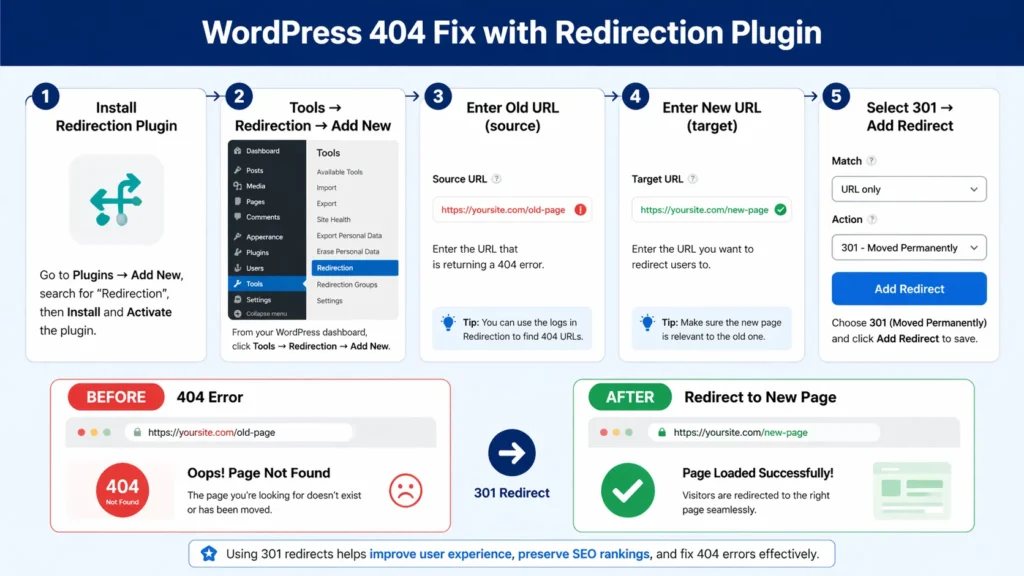
The Redirection plugin by John Godley is the most widely used free WordPress redirect manager — and one of the best answers to how to find and fix 404 errors WordPress free:
- Install and activate the Redirection plugin from the WordPress plugin repository.
- Go to Tools → Redirection.
- Click ‘Add New’ or use the bulk import feature for multiple redirects.
- Enter the Source URL (the 404 URL) and Target URL (the live destination page).
- Select ‘Permanent Redirect (301)’ as the type.
- Click ‘Add Redirect’.
The Redirection plugin also has an automatic 404 monitoring feature — enable it in Settings to automatically log all 404s your WordPress site generates, making ongoing detection much easier.
Method 2: Editing .htaccess (Apache Servers)
For Apache-server WordPress installations, you can add 301 redirects directly to your .htaccess file in the root directory. This is faster than plugin-based redirects because it operates at the server level:
| .htaccess 301 Redirect SyntaxRewriteRule ^old-page-url/?$ /new-page-url/ [R=301,L] Example: RewriteRule ^old-service-page/?$ /services/new-service-name/ [R=301,L] |
Method 3: Using Yoast SEO or RankMath Premium (Redirect Manager)
Both Yoast SEO Premium and RankMath Pro include built-in redirect managers that integrate directly with their SEO functionality. These are the cleanest WordPress redirect solutions for websites already using these plugins, as they handle 404 detection, redirect creation, and redirect monitoring from a single dashboard.
Common WordPress-Specific 404 Causes
- WordPress permalink structure changes: Changing permalink settings (from /?p=123 to /post-name/) without redirects creates mass 404s for all existing URLs. After any permalink change, go to Settings → Permalinks and click Save to refresh the .htaccess rules.
- Category or tag URL changes: Renaming WordPress categories changes their URLs without automatic redirects. Install a redirect plugin before renaming any categories.
- Plugin or theme deactivation: Deactivating a plugin that created custom post type pages (portfolio items, products, events) removes those pages and creates 404s for all their URLs.
- Deleted posts without redirects: Moving a post to Trash in WordPress does not create a redirect. Always add a redirect before deleting any published page or post.
For complex WordPress 404 issues — particularly after migrations or permalink changes — our technical seo service dubai diagnoses every 404 source and implements comprehensive redirect mapping to recover lost rankings and link equity.
How to Fix Soft 404 Errors
Fixing soft 404 errors requires a fundamentally different approach from hard 404s because the problem is content quality rather than a missing page. Google Search Console flags these in the Pages report under ‘Soft 404’.
How to Identify Soft 404 Errors
- In Google Search Console, go to Indexing → Pages.
- Look for ‘Soft 404’ in the list of reasons pages are not indexed.
- Click ‘Soft 404’ to see all affected URLs.
- Use the URL Inspection Tool on individual URLs to see exactly what Google found.
Soft 404 Fix Options
- Add meaningful content: If the page should exist, add genuine, substantial content. For an out-of-stock product page, add the product description, specifications, related products, and a back-in-stock notification option — giving Google real content to evaluate.
- Return a proper 404 HTTP status: If the page content is genuinely empty and the page should not exist, configure the server to return a 404 (or 410 Gone) status code rather than 200. This resolves the contradiction between the status code and the empty content.
- 301 redirect: If the content category is discontinued, redirect the page to the most relevant active category or page.
- Noindex the page: For search result pages and dynamically generated empty pages that should not be indexed, add a noindex meta tag. This does not fix the soft 404 but removes it from Google’s indexing consideration.
Can 404 Errors Be Fixed in Bulk?
Yes — bulk 404 error fixing is essential after website migrations, URL structure changes, and platform switches. Here is how to fix 404 errors in bulk efficiently:
Creating a Bulk Redirect Map
- Export all 404 URLs from Google Search Console (use the Export button in the Pages report).
- Create a spreadsheet with two columns: Old URL (the 404) and New URL (the redirect destination).
- Match each 404 URL to its most relevant active page — use URL pattern matching for systematic migrations (e.g., all /old-category/post-name/ → /new-category/post-name/).
- For URLs with no relevant match, redirect to the most relevant section page.
- Import the redirect map into your redirect tool — the Redirection plugin for WordPress allows CSV import.
- For non-WordPress sites, implement redirects in .htaccess (Apache), nginx.conf (Nginx), or your hosting control panel’s redirect manager.
Bulk 404 Fix on Different Platforms
- WordPress: Redirection plugin’s CSV import — upload a spreadsheet with source and target URLs for bulk redirect creation.
- Shopify: Online Store → Navigation → URL Redirects → Import — Shopify supports bulk redirect import via CSV.
- Apache servers (.htaccess): Add RewriteRule directives for each redirect, or use RewriteMap for very large volumes.
- Nginx servers: Add return 301 rules in the nginx configuration file or use a map directive for bulk redirects.
How to Fix favicon.ico 404 Error
The favicon.ico 404 error is one of the most common 404 errors that appears in server logs and some crawl tools — and one of the least impactful. Every browser requests favicon.ico when loading a website (it is the small icon displayed in browser tabs). If your website has not set a favicon, every page load generates a favicon.ico 404 in your server logs.
Three Ways to Fix favicon.ico 404
- Upload a favicon.ico to your root directory: Create a 16×16 or 32×32 pixel .ico file and upload it to your website’s root directory (/public_html/). This is the most permanent fix.
- In WordPress: Go to Appearance → Customize → Site Identity → Site Icon. Upload your logo or icon image (WordPress will handle the favicon conversion automatically).
- Add a redirect: Redirect /favicon.ico to your actual favicon file location if it is stored elsewhere on your server.
Note: favicon.ico 404 errors have minimal SEO impact compared to content page 404s. Fixing them is good practice but should not be prioritised over 404s on content pages with backlinks or traffic.
How to Create an SEO-Optimised 404 Error Page
Some 404 errors are inevitable — users type URLs incorrectly, old bookmarks expire, and external sites occasionally link to pages that no longer exist. A well-designed 404 page minimises the damage from these unavoidable errors:
- Return a true HTTP 404 status code — the page must signal 404 to browsers and search engines even while looking helpful to users.
- Include clear navigation links to your most important sections — homepage, services, contact.
- Add a search box to help users find what they were looking for.
- Keep the page design consistent with the rest of your website — disorienting visitors makes them more likely to leave.
- Consider adding a helpful message that acknowledges the error and guides the visitor to useful content.
- Do NOT redirect all 404s to the homepage — this creates soft 404 issues as described above.
Expert Insight: 404 Error Patterns Across UAE Business Websites
After auditing hundreds of UAE business websites, 404 errors follow three consistent patterns. First: post-migration mass 404s are the most impactful and most preventable. Website redesigns that change URL structures without a comprehensive redirect map are the single largest source of ranking collapse in UAE businesses — I have seen websites lose 70% of organic traffic overnight from a migration where no redirects were implemented. The fix always requires a redirect map, but the ranking recovery takes 8 to 16 weeks. Second: WordPress category renaming without redirects creates silent 404s that accumulate over months — particularly common for businesses that frequently reorganise their blog or service categories. Third: e-commerce out-of-stock product 404s are the most damaging ongoing issue for UAE online retailers — every product that sells out and gets deleted rather than redirected loses the backlinks and ranking history built for that product page. Redirect discontinued products to category pages rather than deleting them.
Case Study: Recovering AED 190,000 in Revenue by Fixing 404 Errors
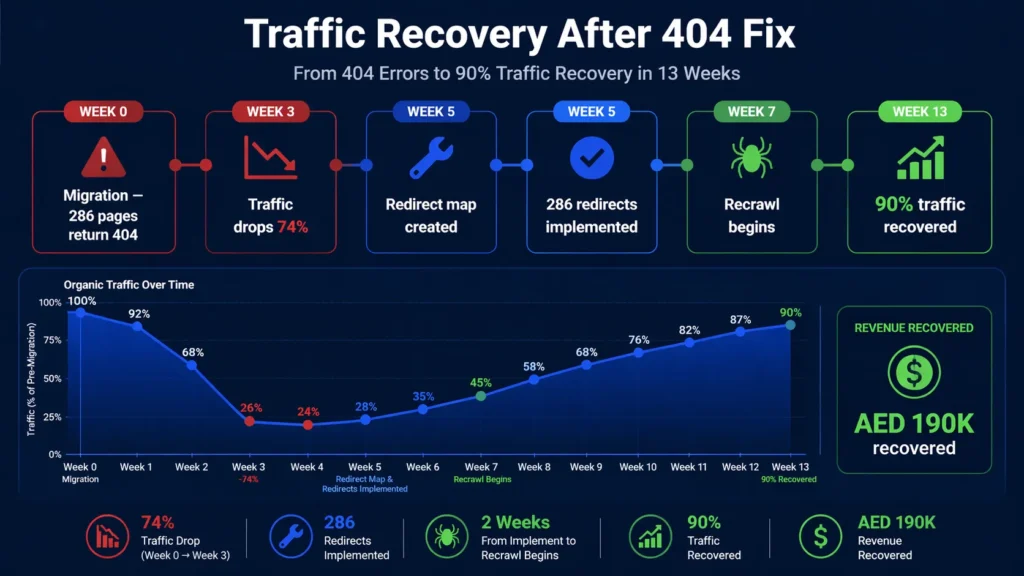
A Dubai-based legal services firm underwent a website redesign that moved all service pages from a /services/practice-area/ URL structure to a /practice-area/ structure. The migration was executed without a single 301 redirect. Within 3 weeks:
- 286 service page URLs were returning 404 errors.
- 89 of those pages had accumulated backlinks from UAE legal directories, news sites, and professional associations.
- The firm’s organic traffic dropped from 4,200 to 1,100 monthly visitors in the first month.
- Google Search Console showed 286 pages in ‘Not found (404)’ status and 94 pages moved from first page rankings to page 3 or below.
The remediation we implemented over 2 weeks:
- Exported all 286 404 URLs from Search Console.
- Cross-referenced with Ahrefs to identify the 89 URLs with backlinks — these were fixed first.
- Created a complete redirect map: every old /services/practice-area/ URL mapped to its corresponding new /practice-area/ URL.
- Implemented all 286 redirects via .htaccess (Apache server).
- Updated internal links throughout the website to point directly to new URLs.
- Updated the XML sitemap to contain only the new URL structure and resubmitted to Search Console.
- Requested re-indexing for the 40 highest-traffic pages through the URL Inspection Tool.
Recovery results: Traffic returned to 3,800 monthly visitors within 8 weeks (90% recovery). All 89 backlinked pages recovered their rankings within 10 weeks. Three pages that had been ranking position 1 before the migration recovered to position 1 to 3 within 12 weeks. The firm estimated AED 190,000 in recovered annual revenue from organic search — revenue that had been lost during the 10-week recovery period plus the 3 weeks before the fix was applied.
Related Technical SEO Guides
404 error fixing is most effective as part of a comprehensive technical SEO strategy. These guides cover every related technical area:
● What Is Technical SEO — How 404 errors fit within the complete technical SEO framework.
● How to Fix Crawl Errors in Google Search Console — Fix all types of crawl errors beyond just 404s.
● How to Fix Indexing Issues in Google Search Console — Address indexing problems related to 404 and other errors.
● What Are Core Web Vitals and How to Improve Them — Optimise your website’s performance signals alongside 404 fixes.
● How to Speed Up Your WordPress Website — Improve WordPress performance after completing 404 remediation.
● What Is a Sitemap and How to Submit It to Google — Update and resubmit your sitemap after fixing 404 errors.
Frequently Asked Questions — How to Fix 404 Errors
What is a 404 error and why does it matter for SEO?
A 404 error occurs when a server cannot find the requested URL and returns an HTTP 404 Not Found status code. It matters for SEO because 404 errors mean Google cannot crawl and index those pages, waste your crawl budget, break internal link equity flow, and — most critically — lose the link equity from any external backlinks pointing to the 404 URL. Unresolved 404s on previously ranked pages cause direct ranking loss.
How to fix 404 errors in Google Search Console?
In Google Search Console, go to Indexing → Pages → Not found (404) to see all 404 URLs. Export the list, then for each URL: create a 301 redirect to the most relevant live page (for pages with backlinks or traffic), fix broken internal links (for links pointing to wrong URLs on your own site), or restore the deleted content. After fixing, use the URL Inspection Tool to request re-indexing for priority pages.
How to fix 404 errors in WordPress?
Install the free Redirection plugin (Tools → Redirection → Add New). Enter the 404 URL as source and the correct live URL as target, select Permanent Redirect (301), and save. For bulk fixes, use Redirection’s CSV import feature. Alternatively, add redirect rules directly to your .htaccess file using RewriteRule syntax. For ongoing 404 prevention, enable Redirection’s 404 monitoring to automatically log all new broken URLs.
How to fix soft 404 errors?
Soft 404 errors require content fixes rather than redirects. Find them in Google Search Console under Indexing → Pages → Soft 404. For each soft 404: if the page should exist, add meaningful original content (minimum 400 to 600 words of genuine value). If the page is empty and should not be indexed, add a noindex tag or return a proper 404 HTTP status code. If the content category is discontinued, create a 301 redirect to a relevant active page.
Can 404 errors be fixed in bulk?
Yes — bulk 404 fixing is essential after site migrations. Export all 404 URLs from Search Console, create a spreadsheet mapping each old URL to its new destination, then implement them all at once. In WordPress, the Redirection plugin supports CSV import for bulk redirects. Shopify supports bulk redirect import via the URL Redirects CSV template. For Apache servers, add all RewriteRule directives to .htaccess simultaneously.
How to fix the favicon.ico 404 error?
Upload a favicon.ico file to your website’s root directory (/public_html/). In WordPress, set it through Appearance → Customize → Site Identity → Site Icon. Alternatively, redirect /favicon.ico to wherever your favicon file is stored. The favicon.ico 404 is generated by browsers automatically requesting this file — fixing it eliminates recurring 404s in server logs, though its SEO impact is minimal compared to content page 404s.
What is the difference between a hard 404 and a soft 404?
A hard 404 returns an HTTP 404 status code — the server explicitly says ‘this page does not exist’. A soft 404 returns an HTTP 200 (success) status code but serves a page with no meaningful content, causing Google to treat it as a missing page despite the successful response. Hard 404s are straightforward to detect. Soft 404s are more dangerous because they pass basic HTTP status monitoring while still wasting crawl budget and failing to serve useful content.
How do I know if my 404 pages have backlinks?
Use Ahrefs, Semrush, or Moz to check which of your 404 URLs have external backlinks pointing to them. In Ahrefs: go to Site Explorer → enter your domain → Broken Backlinks — this shows all external links pointing to 404 pages on your website, sorted by domain rating of the linking site. These backlinked 404s are your highest-priority fixes because every day without a redirect means continued loss of that link equity.
How long does it take for rankings to recover after fixing 404 errors?
After implementing 301 redirects for 404 pages, Google typically processes the redirects within 24 to 72 hours. Rankings for the redirected pages typically begin recovering within 2 to 4 weeks, with full recovery taking 6 to 12 weeks depending on how long the 404 existed, the number of backlinks involved, and the competitiveness of the target keywords. Pages that were 404 for only a few days recover faster than those that were broken for months.
Should I use 301 or 302 redirects to fix 404 errors?
Always use 301 (Permanent Redirect) to fix 404 errors. A 301 tells Google the move is permanent and passes approximately 90% of the original page’s link equity to the redirect destination. A 302 (Temporary Redirect) tells Google the move is temporary and passes significantly less link equity. Since 404 fixes are permanent corrections — not temporary changes — 301 is always the correct choice.
What causes 404 errors after a WordPress update?
WordPress updates occasionally cause 404 errors by resetting .htaccess permalink rules. If you experience sudden 404 errors after a WordPress update, go to Settings → Permalinks and click Save Changes (without changing any settings) — this regenerates the .htaccess rules and typically resolves the issue immediately. If this does not fix it, check whether a plugin update has affected your URL structure.
How to fix 404 errors on a Shopify website?
In Shopify, go to Online Store → Navigation → URL Redirects → Add URL Redirect. Enter the old 404 URL in the ‘Redirect from’ field and the live destination URL in the ‘Redirect to’ field. For bulk fixes, use Shopify’s URL Redirects CSV import feature. Note that Shopify generates some 404s automatically for deleted products — always create redirects before deleting products with existing backlinks or traffic.
What is ‘Google error 404’ and how is it different from a regular 404?
‘Google error 404’ refers to 404 errors that Google’s crawler specifically encounters when trying to index your pages — as opposed to 404 errors that only appear in browser-level testing. Google error 404s appear in Google Search Console’s Pages report and represent URLs that Google has attempted to crawl but cannot access. These are the most SEO-critical 404s to fix because they directly prevent pages from being indexed and ranked.
Can 404 errors cause a website to be penalised by Google?
404 errors do not directly trigger a Google penalty. Google considers 404 errors a normal part of the web — pages get deleted, content changes, and some links break. However, a large proportion of 404 errors on a website signals poor maintenance to Google’s quality algorithms. More importantly, unresolved 404s on pages with backlinks and previous rankings cause direct, measurable ranking loss — which has the same practical effect as a penalty even without being one.
How often should I check for and fix 404 errors?
Check for 404 errors monthly at minimum — weekly if your website publishes content frequently or has recently undergone any structural changes. Set up email alerts in Google Search Console (Settings → Email preferences) to receive notifications when new 404s are detected. After any website migration, URL structure change, or content deletion, check for 404s immediately. Our seo agency dubai provides ongoing monthly 404 monitoring and resolution as part of our technical SEO management service.
Conclusion: Fix 404 Errors Before They Become a Ranking Crisis
Understanding how to fix 404 errors systematically is not just technical housekeeping — it is direct protection of your website’s ranking authority, link equity, and user experience. Every 404 with a backlink is a leaking pipe draining link equity that you may have spent years building. Every 404 on a previously ranked page is an opportunity your competitors are claiming while you are not.
The most important habit to develop: check for 404 errors monthly, fix backlinked 404s immediately, and always create redirects before deleting any published page or changing any URL structure. These three habits prevent the majority of 404-related ranking losses that we see in technical SEO audits.
Start today: open Google Search Console, go to Indexing → Pages → Not found (404), and export your current 404 list. Cross-reference with your backlink profile. Fix the backlinked 404s this week with 301 redirects. Fix internal link 404s the following week. Establish monthly monitoring to stay ahead of new errors.For comprehensive 404 auditing, bulk redirect implementation, and ongoing technical SEO management, our technical seo service dubai handles every aspect of 404 resolution — from initial detection to redirect mapping, implementation, and monthly monitoring. Get your free technical SEO audit today.